How to export information from DIKIDI
Last modified:
In DIKIDI, you can export client and product data to use it for analytics, reports, or work in third-party services.
How to export the client database
To export the client list:
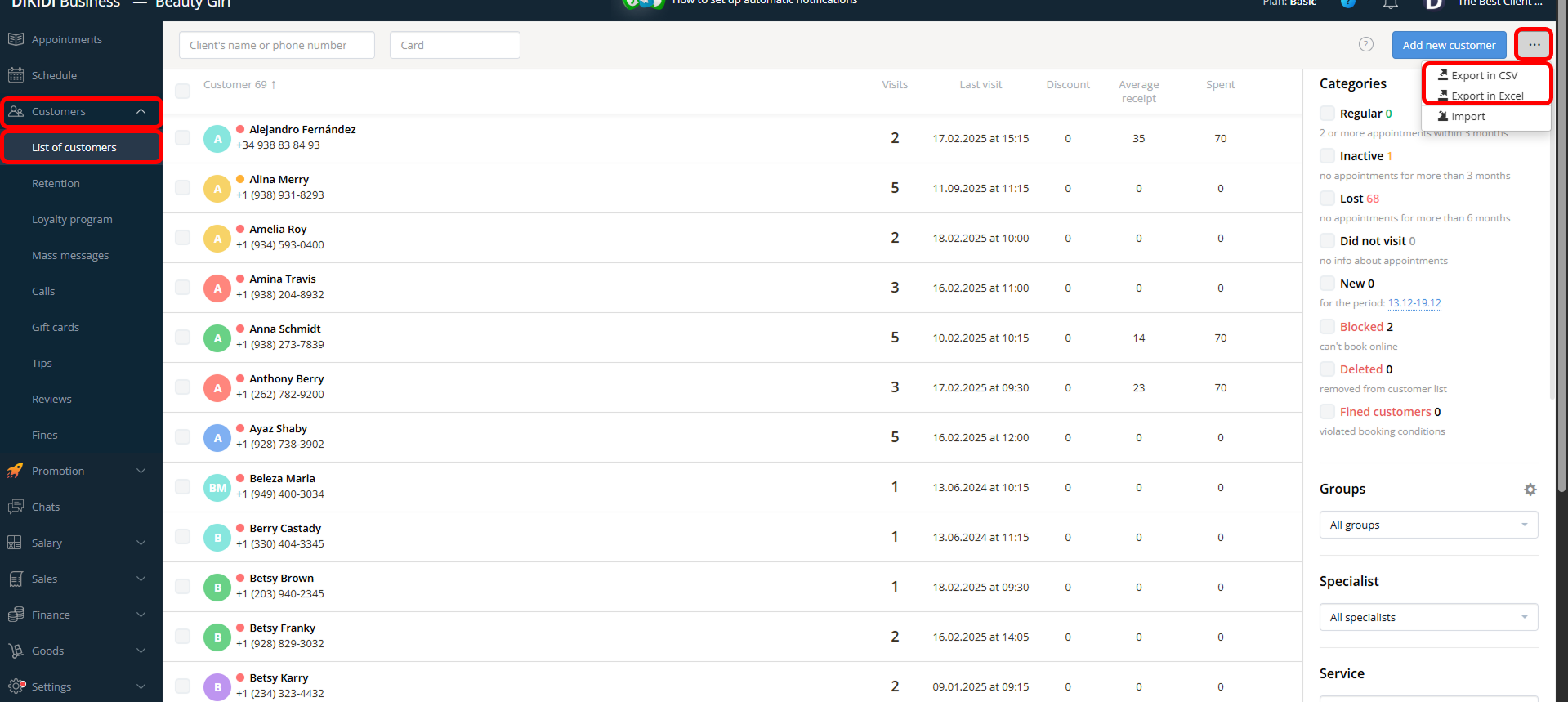
1️⃣ Go to “Customers” → “List of customers”;
2️⃣ Click the three-dot button in the upper right corner;
3️⃣ Select the file format — CSV or Excel.
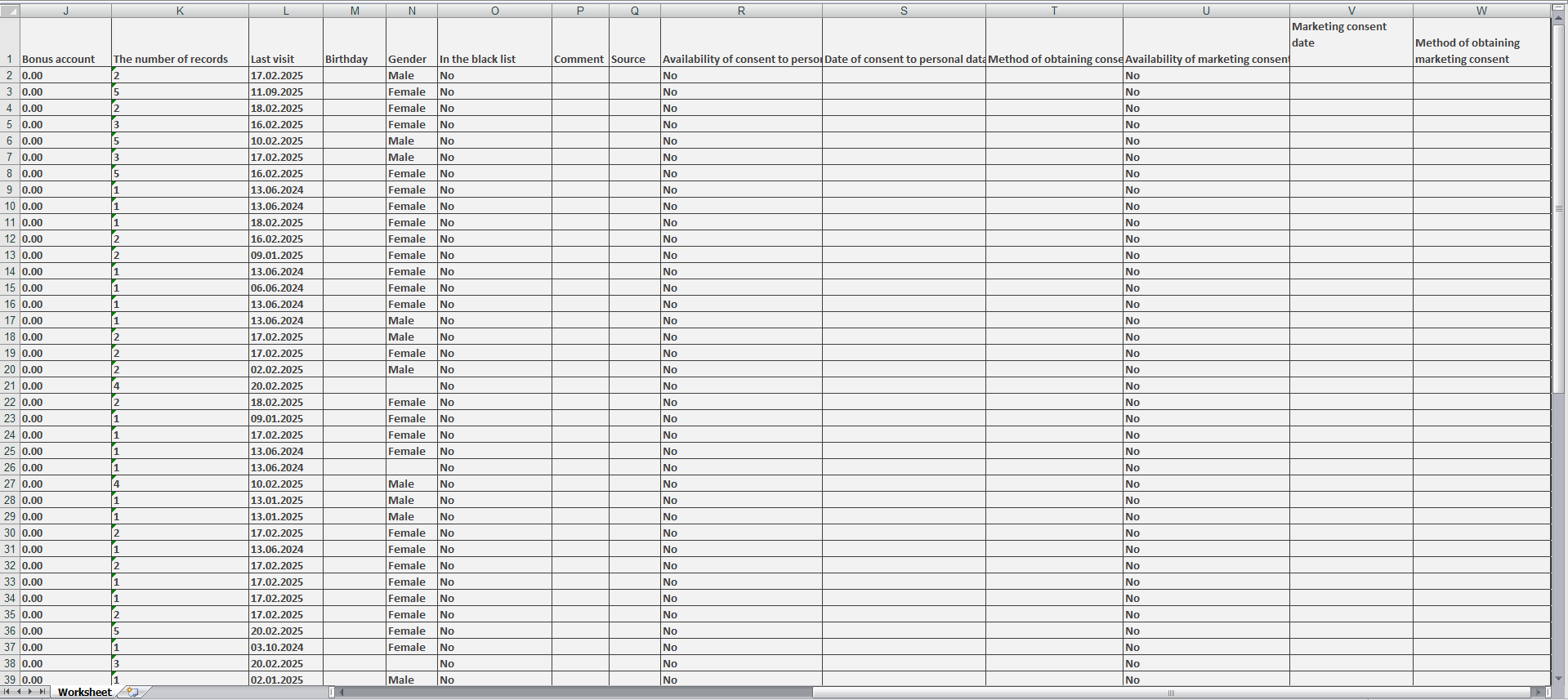
After that, a file will be generated with all available information about the clients added to your database.

⚠️ Important! Exporting the client database is available only to users with “Creator” access.
How to export products
To export the product list and stock balances:
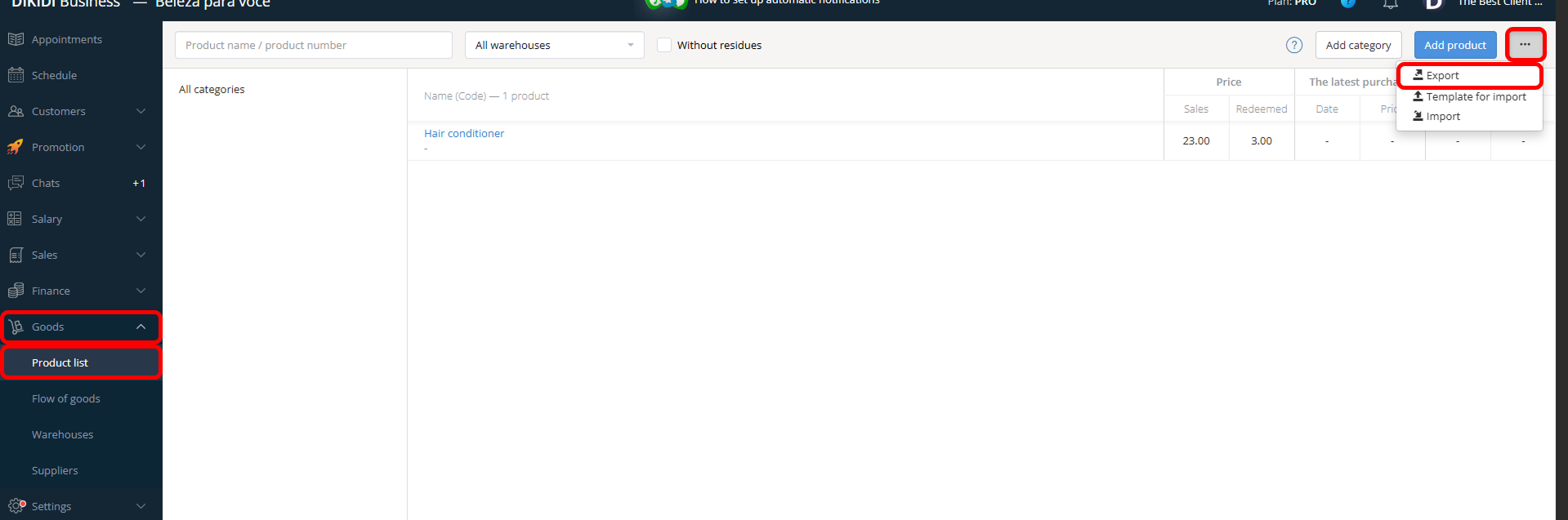
1️⃣ Go to “Goods” → “Product List”;
2️⃣ Click “Export” in the upper right corner;
3️⃣ In the window that opens, select the date for which you want to receive stock balances;
4️⃣ If necessary, check “Break down into storages”;
5️⃣ Click “Export.”
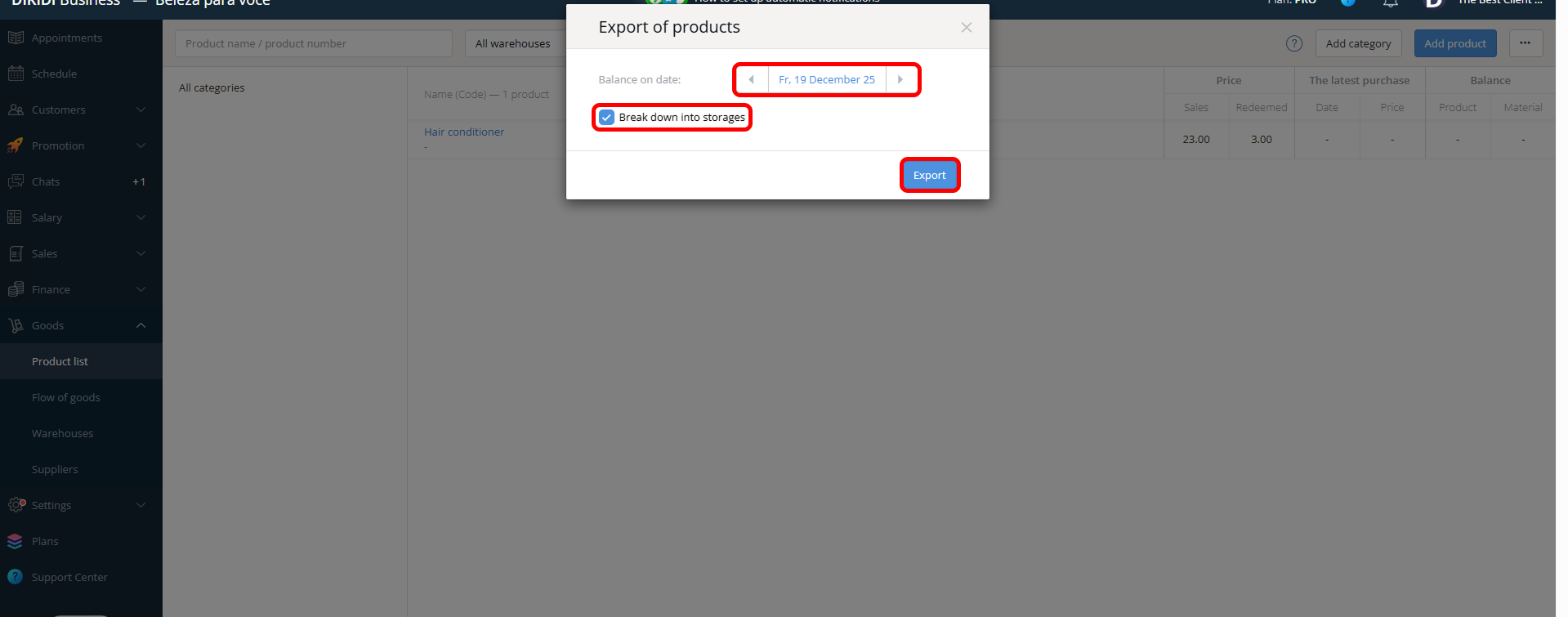
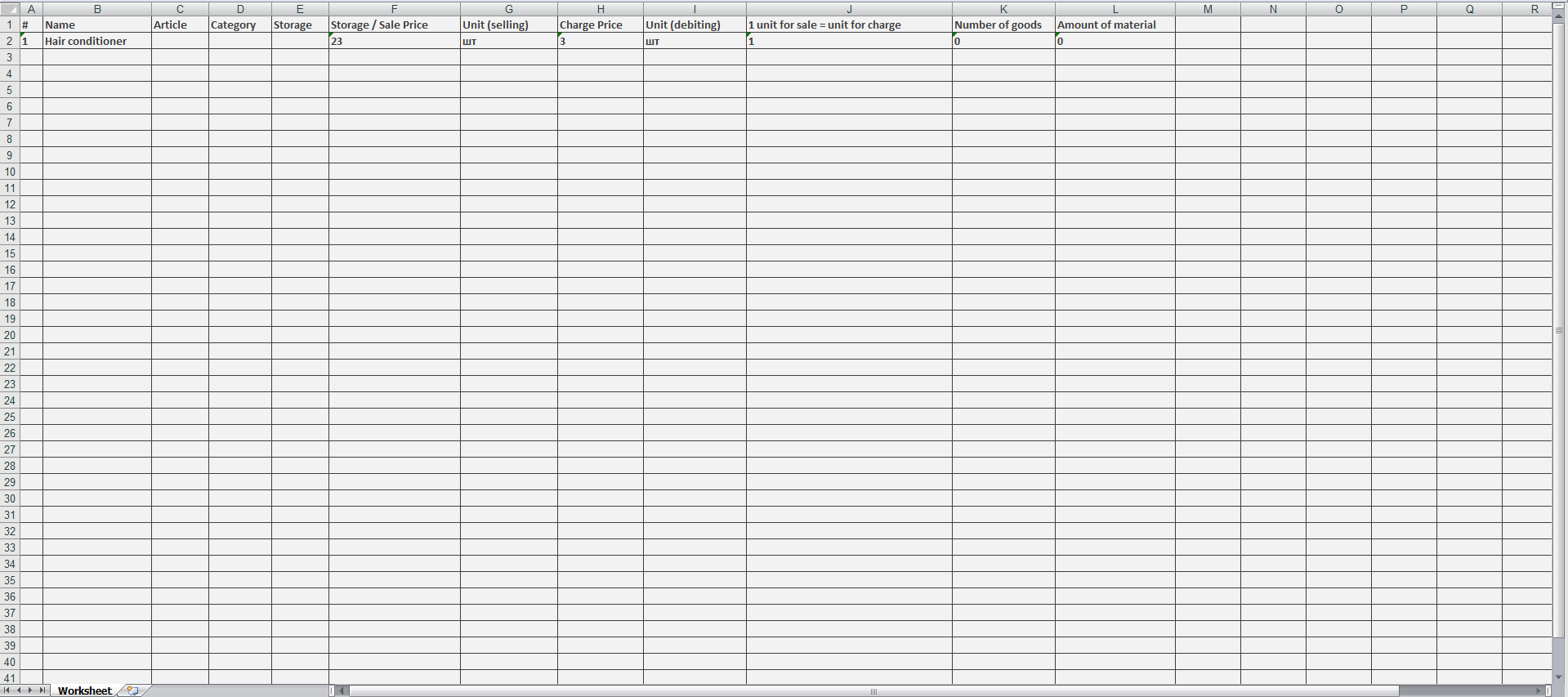
As a result, you will receive a table in Excel format. If splitting by warehouses is selected, an additional “Storage” column will appear in the file.
How to export appointments
To export appointments:
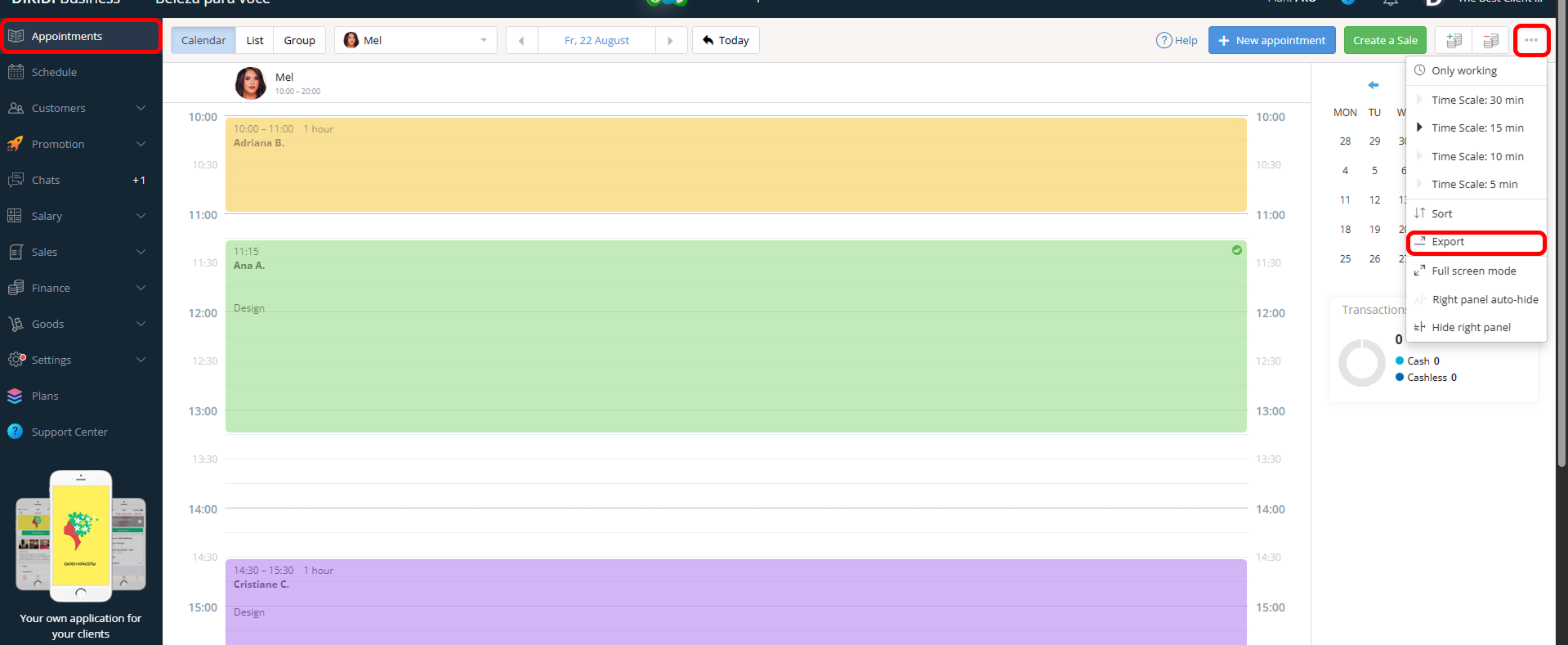
1️⃣ Go to “Appointments”;
2️⃣ Click “Export” in the top-right corner;
3️⃣ In the window that opens:
-
if necessary, enable “Only working” and “Hide days without appointments”;
-
select the date range for which you want to export data.
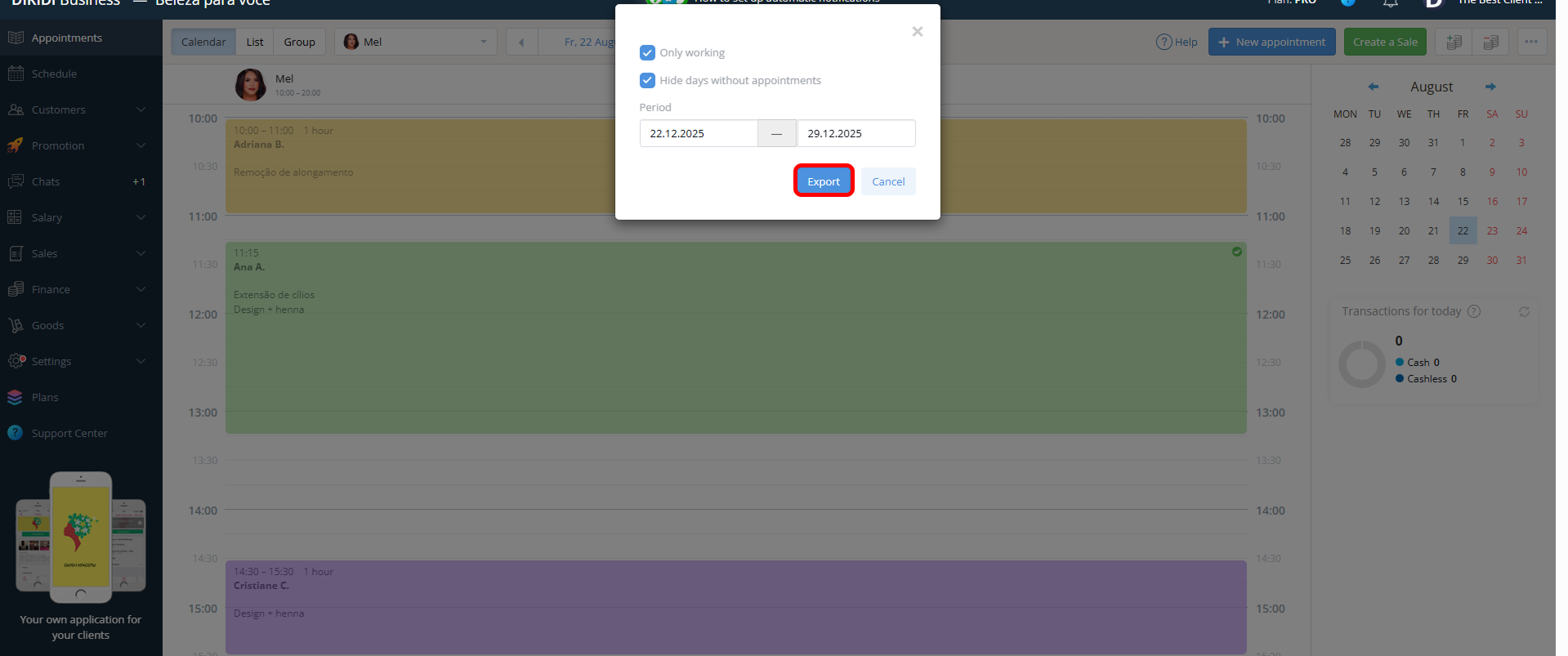
⚠️ Important! The available export range is no more than 31 days.
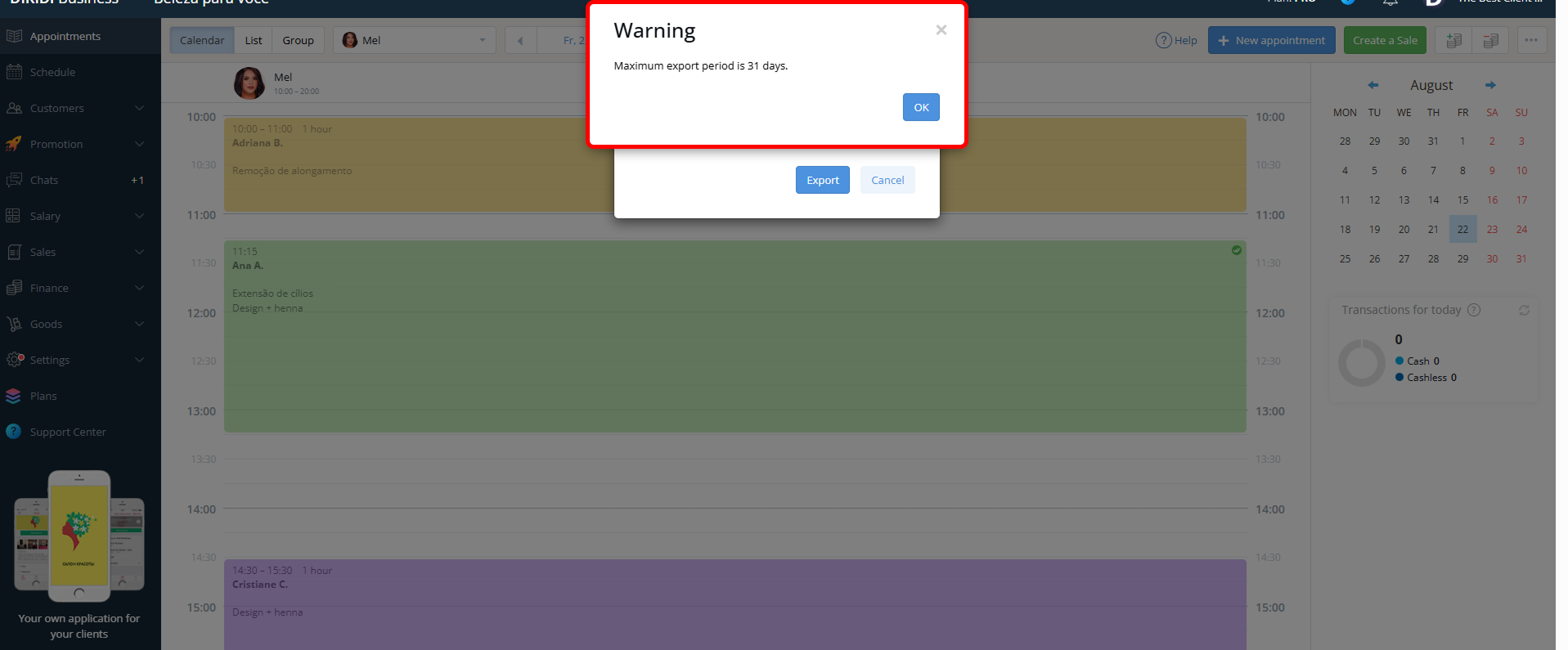
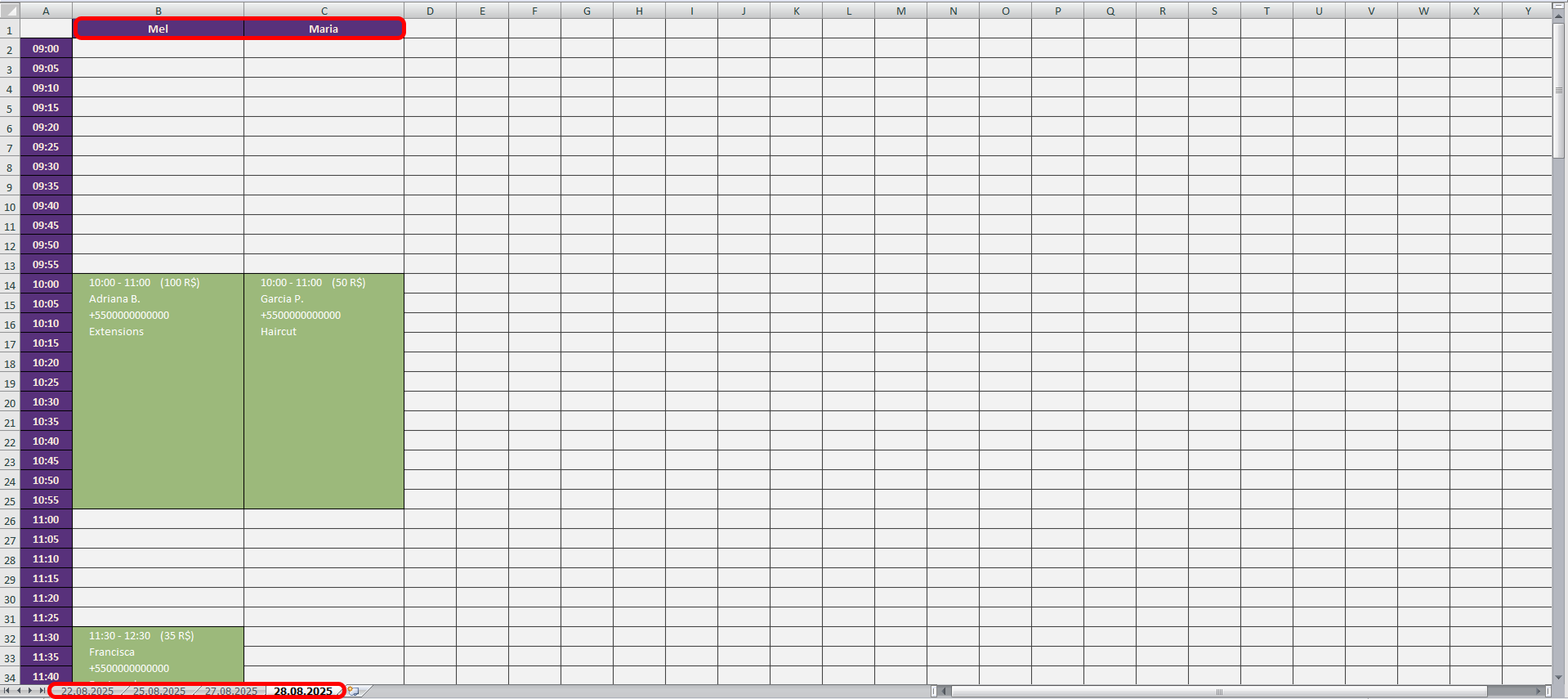
After that, a file will be generated with all bookings from the journal for the selected period.