Documents in the DIKIDI project profile: How to increase customer trust
Last modified:
A new section has appeared in DIKIDI Business – "Documents". Now you can add licenses, certificates, diplomas, awards, and other documents to your project's profile, and your customers will see them right on the project page in DIKIDI Online. In this article, we will break down why this is needed and how to use the section.
Why add documents?
When a person chooses a salon or a specialist, they are guided not only by prices and reviews. Confirmed qualifications and official permits are one of the strongest factors influencing their decision. The "Documents" section helps to show and prove this.
📌 More trust and higher conversion. The client sees that you have a medical license, training certificates, and specialized awards even before booking. This helps eliminate uncertainty and encourages clients to book with you.
📌 Transparency for the client. The documents are gathered in the profile and divided into categories, making it easy for clients to find the information they need. You can specify the number for each document so that, if desired, the client can verify the information in official sources.
📌 Proof of Eligibility to Provide Services. For procedures requiring a license (for example, medical or cosmetological activities), the presence of documents in the profile is a signal that you work legally and responsibly.
📌 Professional image. Awards, diplomas, and achievements strengthen your reputation.
What documents can be added?
Documents are divided into four categories:
🔹 Licenses and Permits – confirmation of the right to provide a service.
🔹 Certificates and Diplomas – evidence of training or completion of specialized courses.
🔹 Awards and achievements – victories, nominations and professional distinctions.
🔹 Other – other documents.
Supported file formats: PDF, JPG, PNG. Up to 20 documents can be added to the profile.
⚠️ Important! The names of uploaded files will be visible to clients on your project's page. Therefore, give the files clear and correct names before uploading.
How the functionality works
Below are three main scenarios for working with the section: adding documents, making changes, and deleting.
Where to find the section
App “Settings” → “Profile” → “Documents”;
Web version “Settings” → “Documents”.
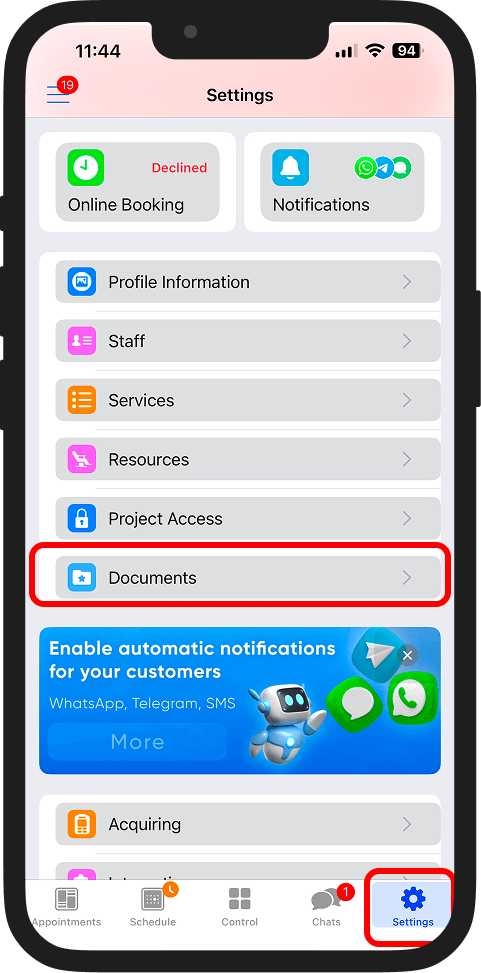
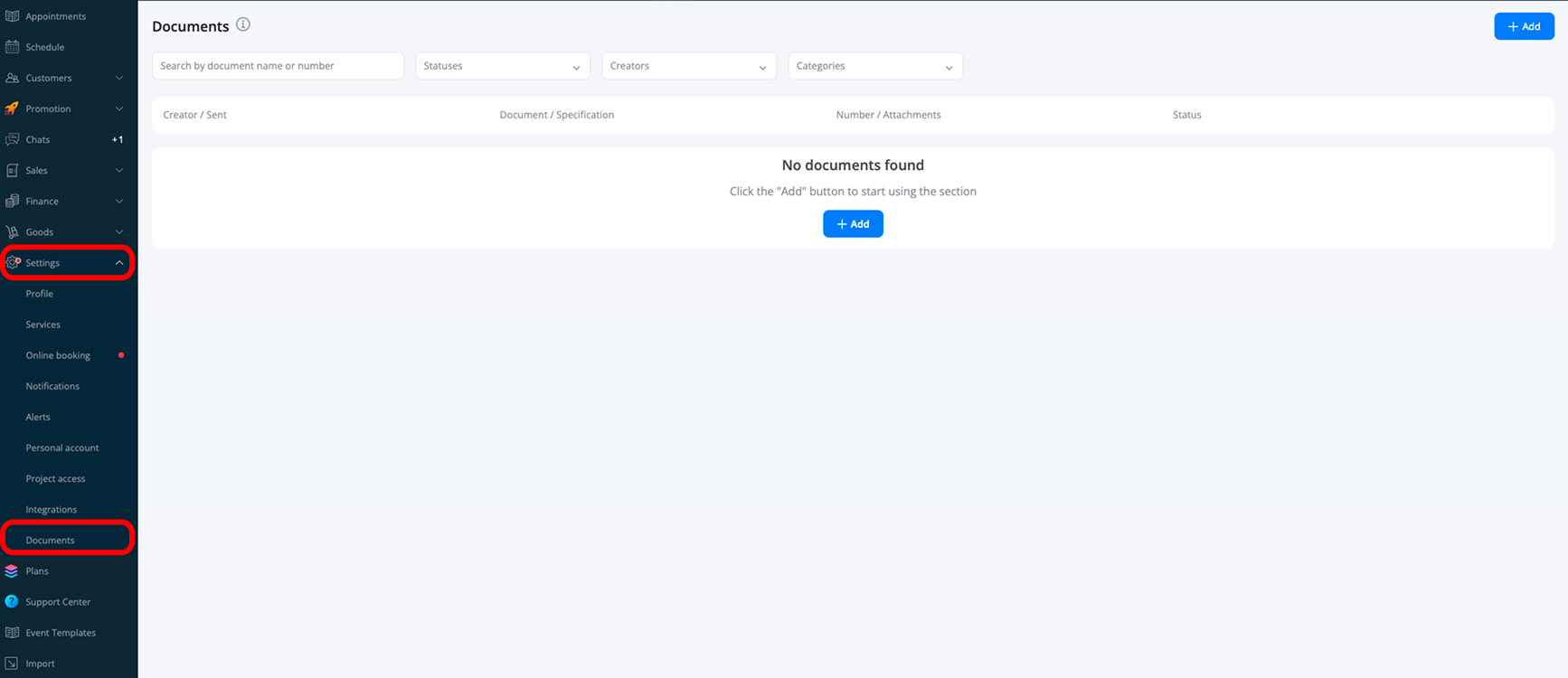
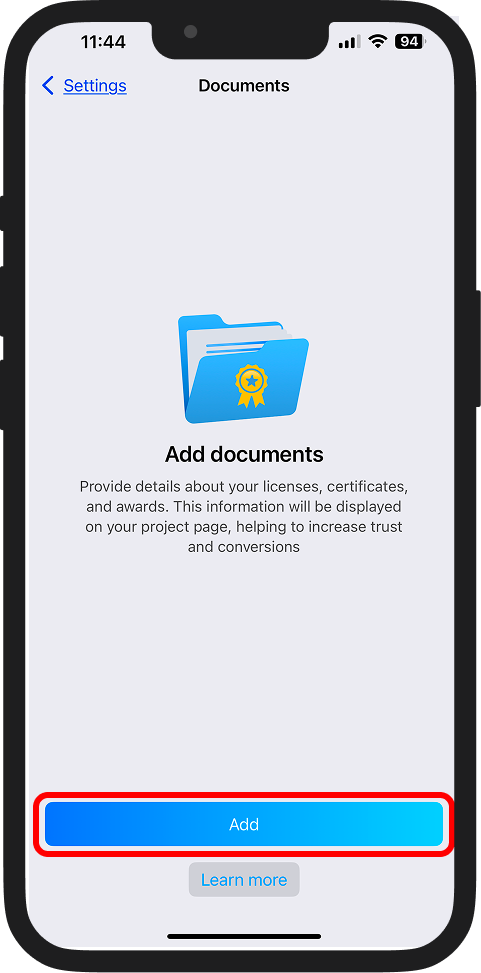
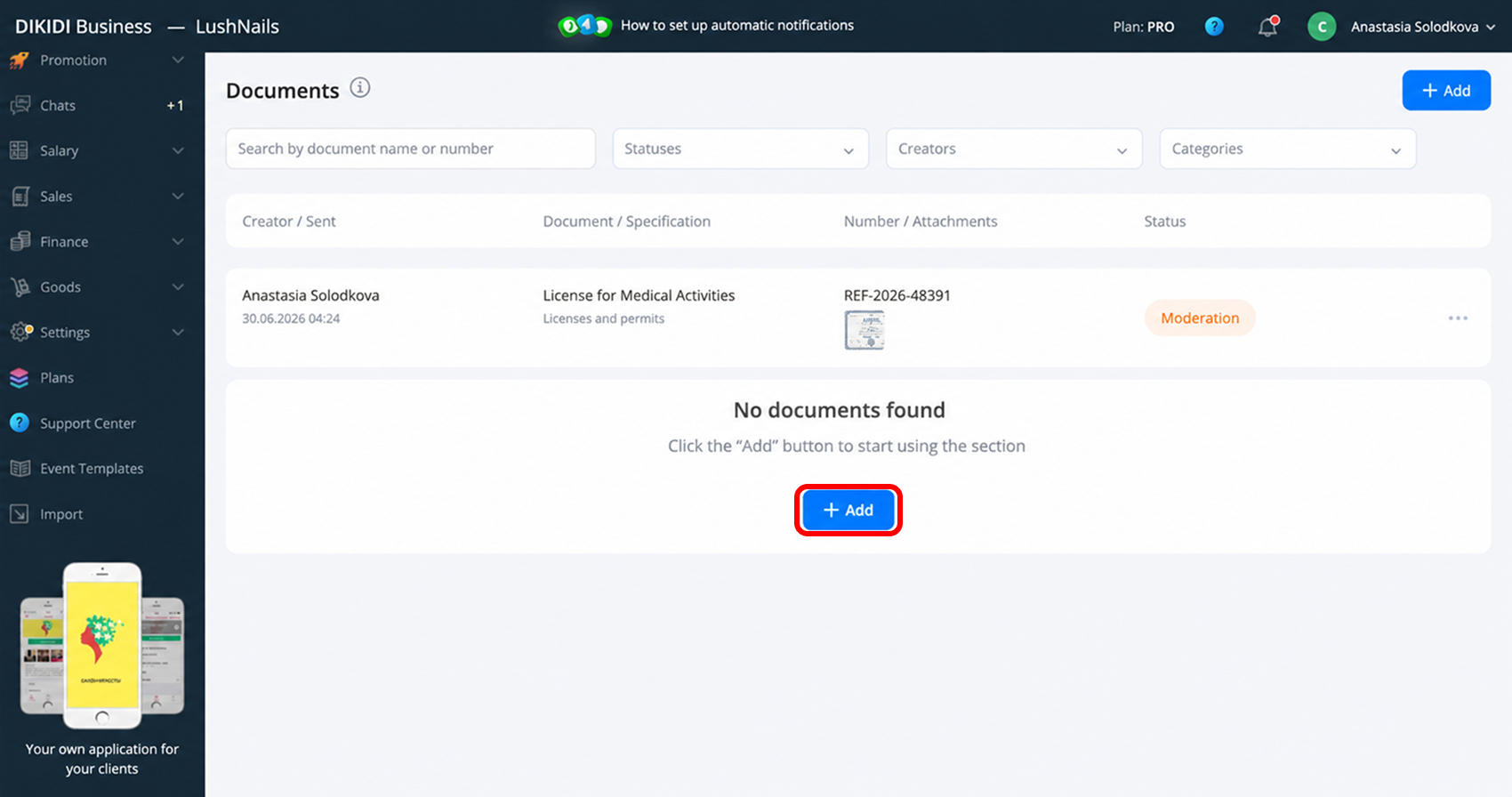
If you haven't added documents yet, a welcome screen with an "Add" button will open. This is the starting point for all further actions.
Adding a document
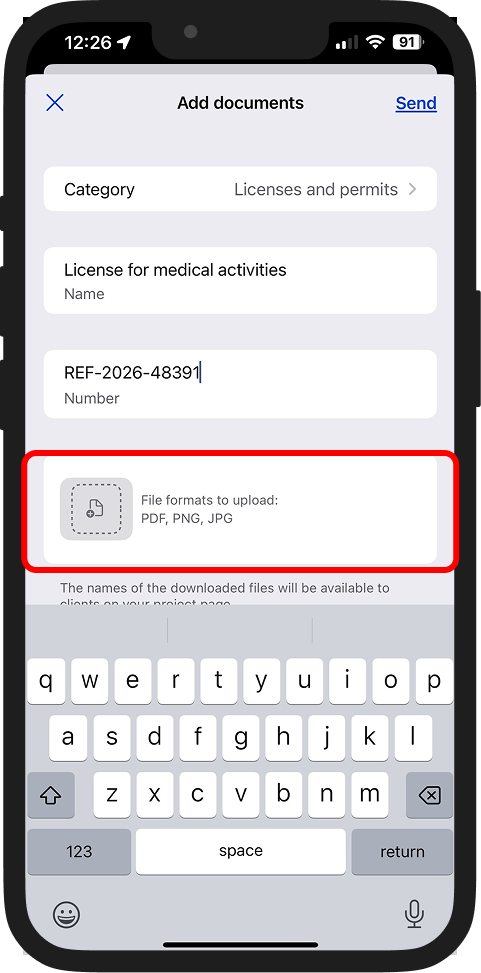
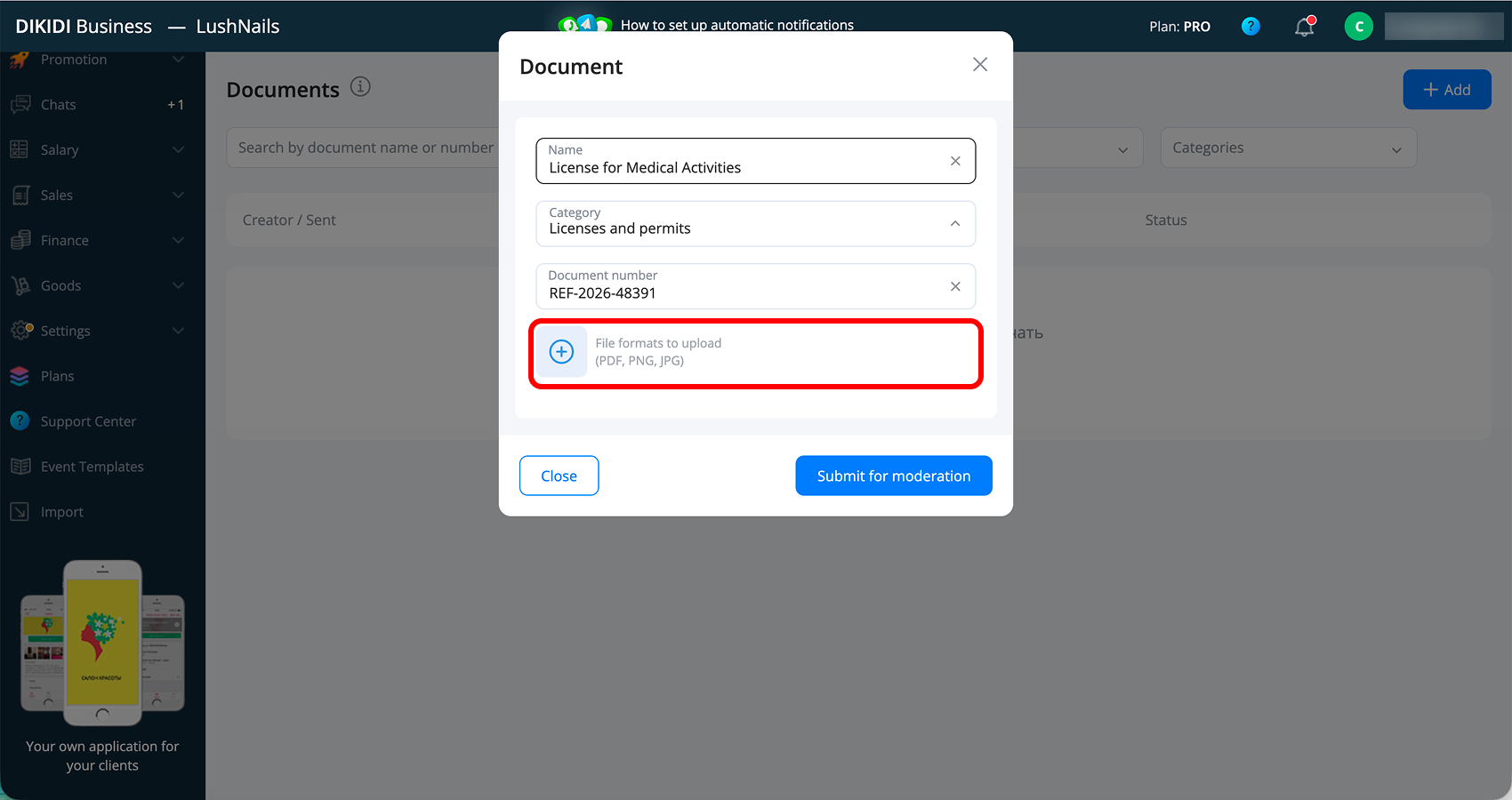
1️⃣ Click “Add”;
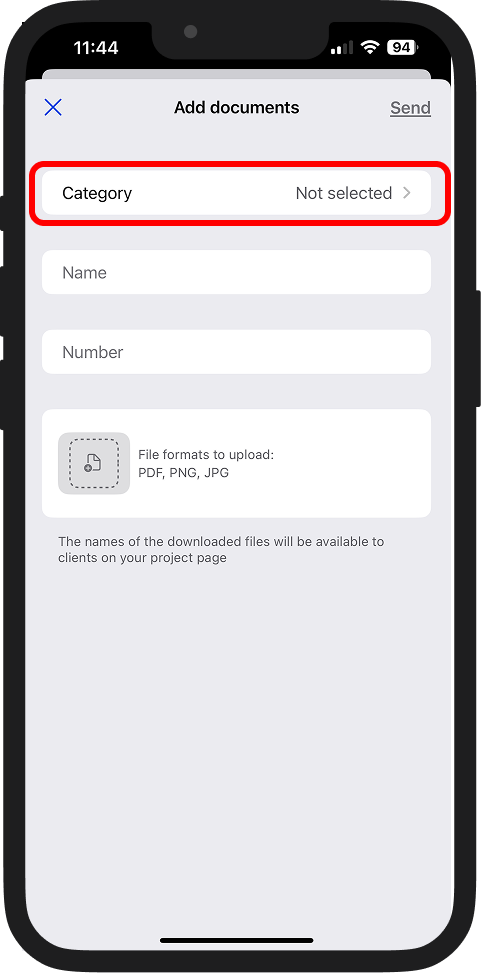
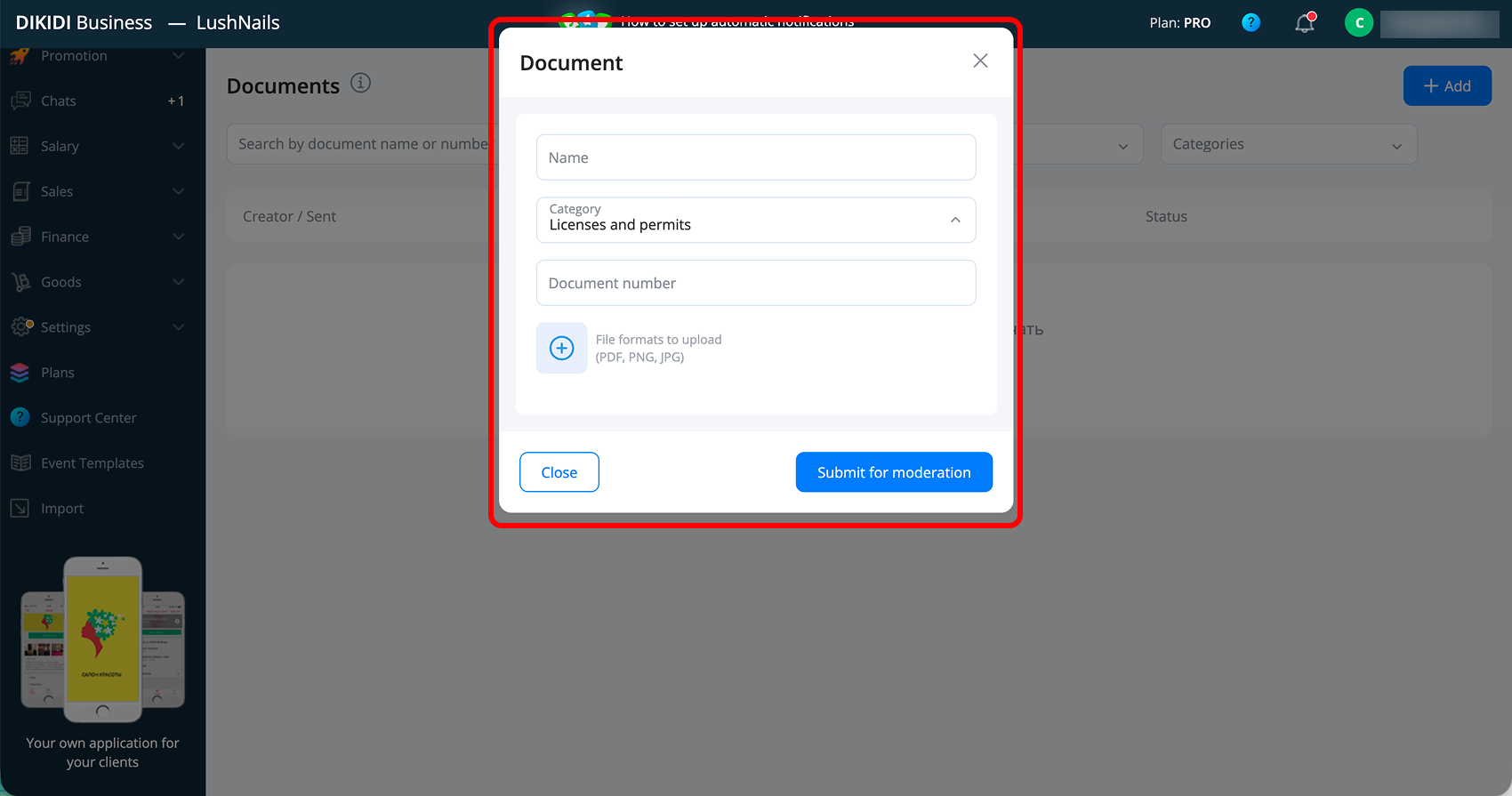
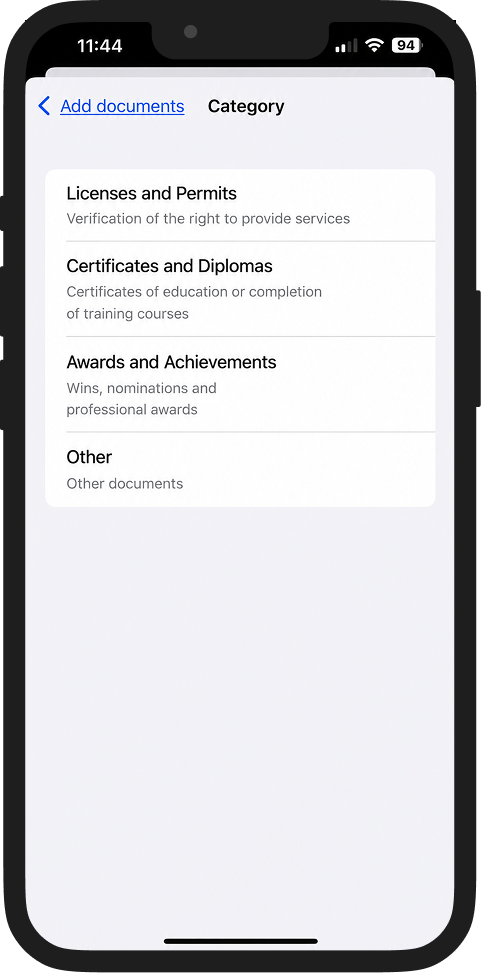
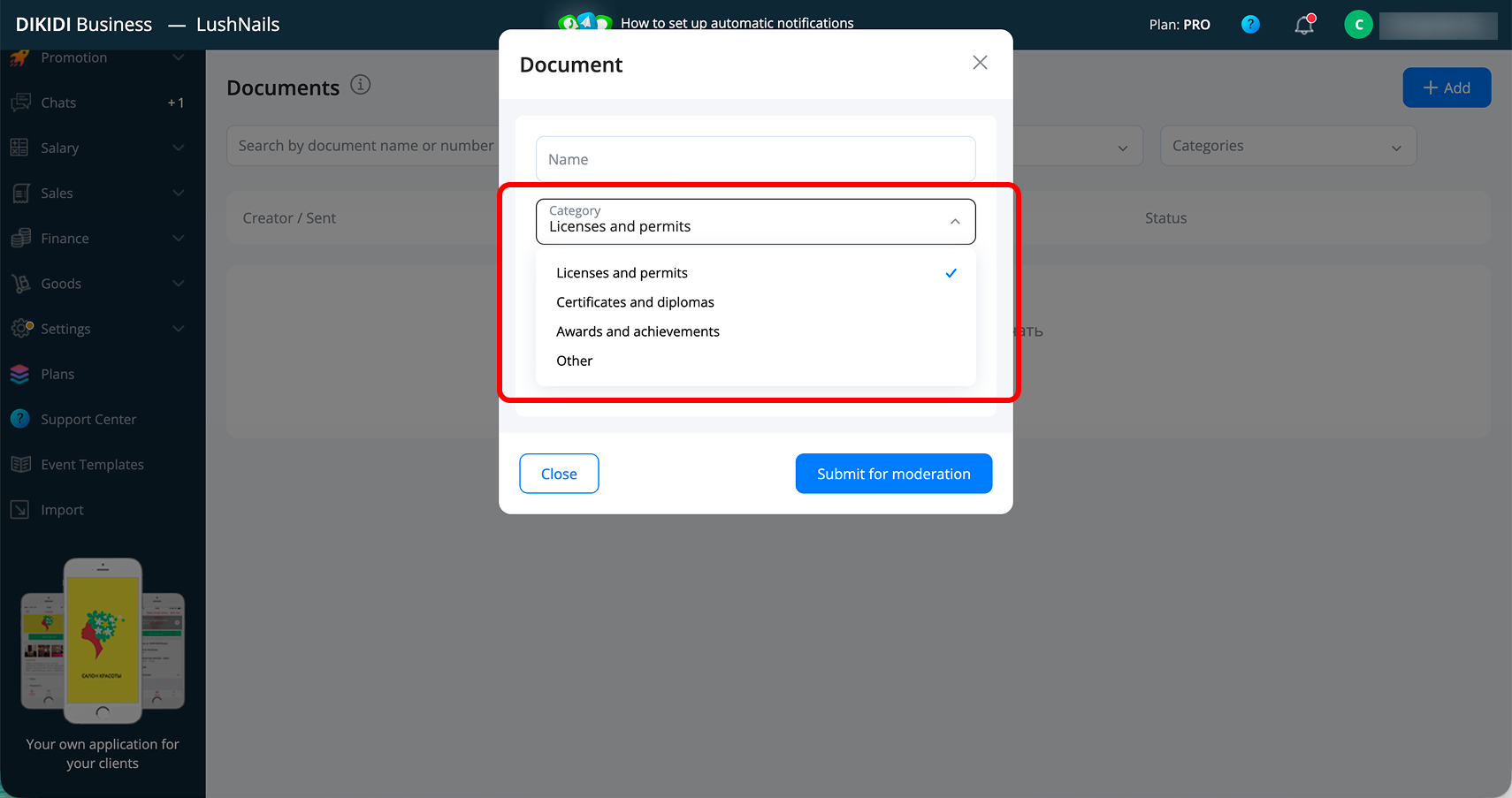
2️⃣ Select a “Category”
- “Licenses and Permits”;
- "Certificates and Diplomas";
- "Awards and Achievements";
- "Other".
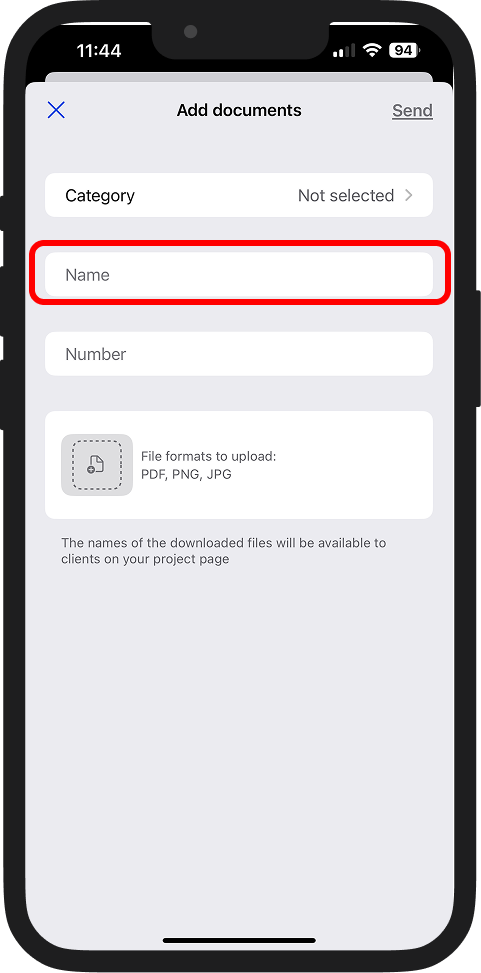
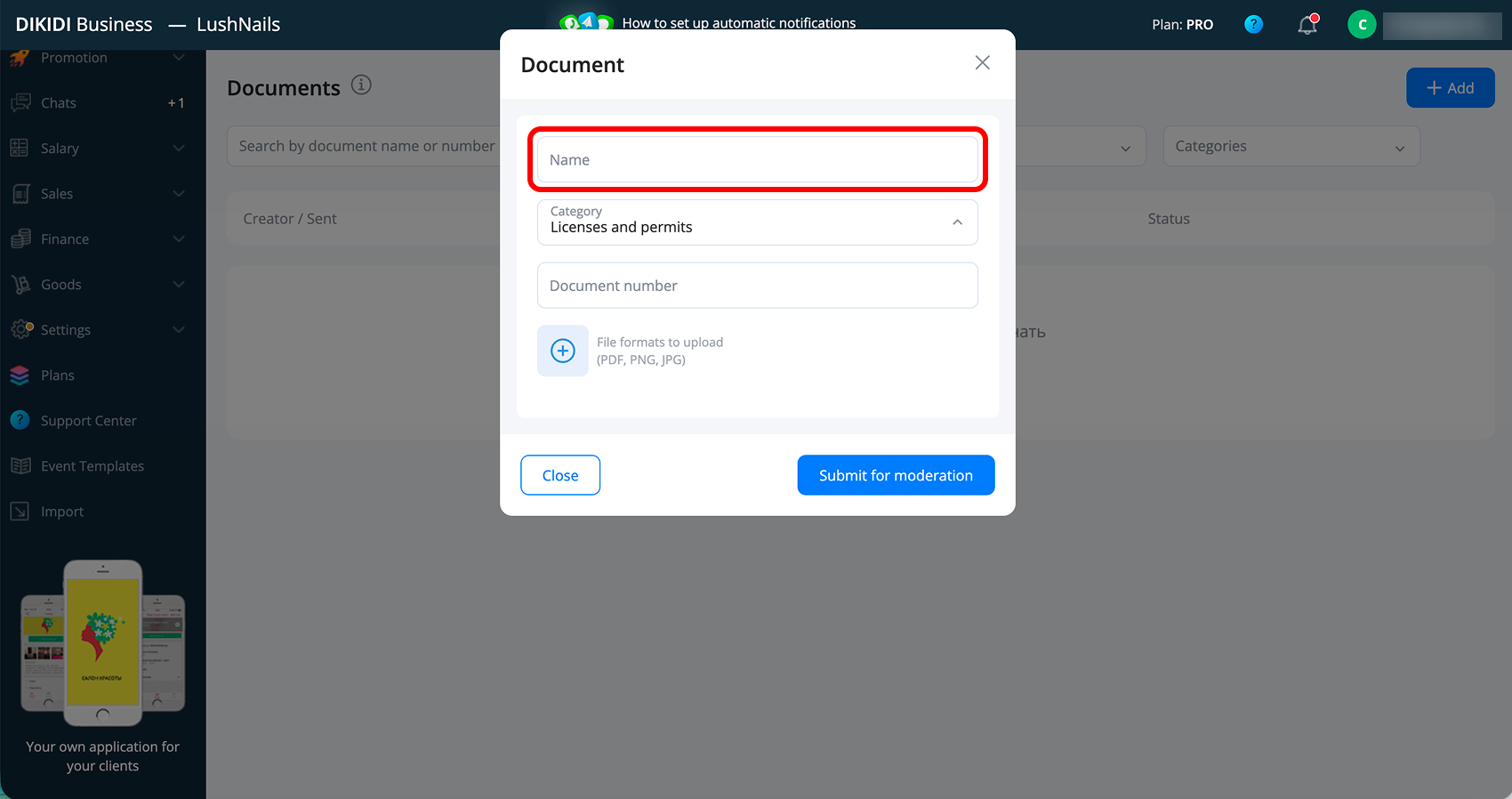
3️⃣ Fill in the “Name” field – it is required. For example, “License for Medical Activities”;
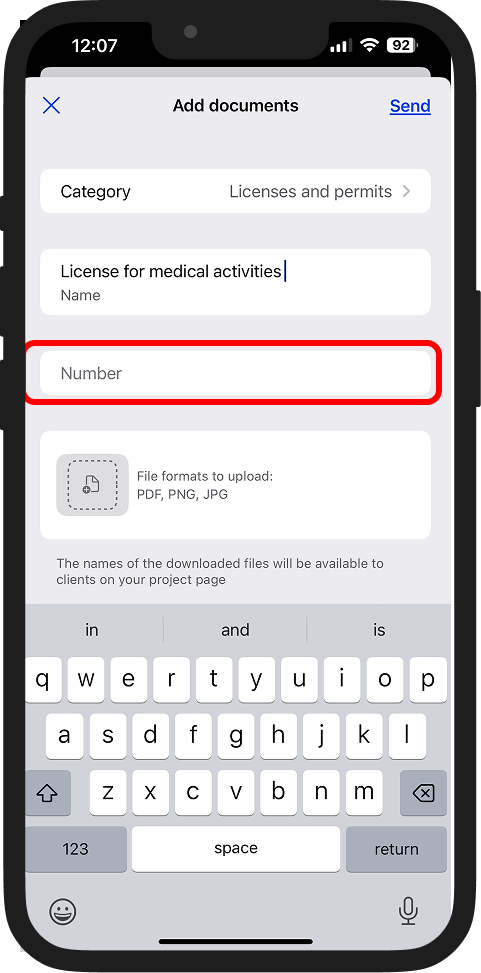
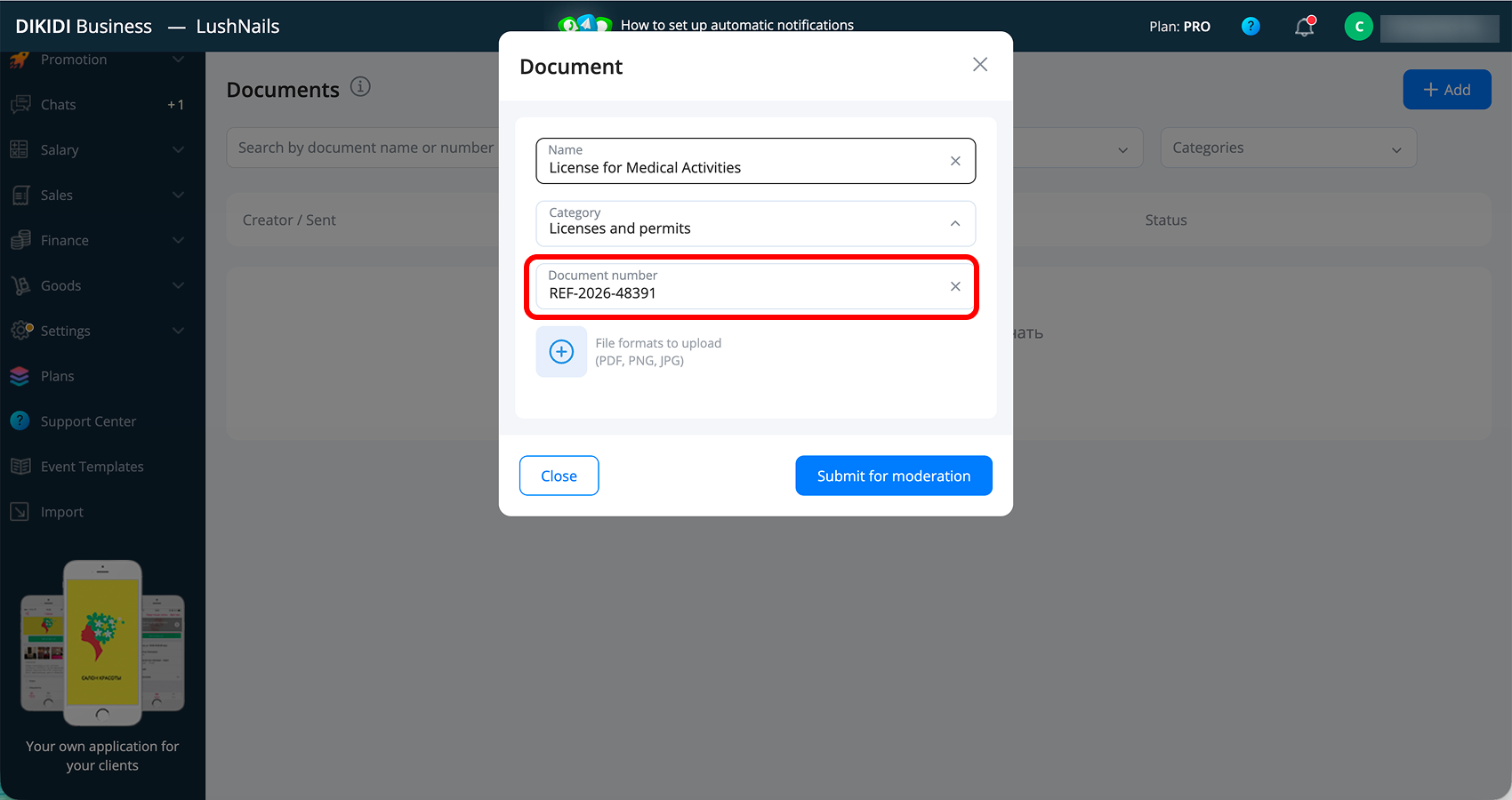
4️⃣ Specify the "Document number”, if there is one. For example: REF-2026-48391;
5️⃣ Upload one or several files with the document in PDF, PNG, or JPG format. In the app, you can add a document from the gallery, files, or take a picture of it by selecting the camera;
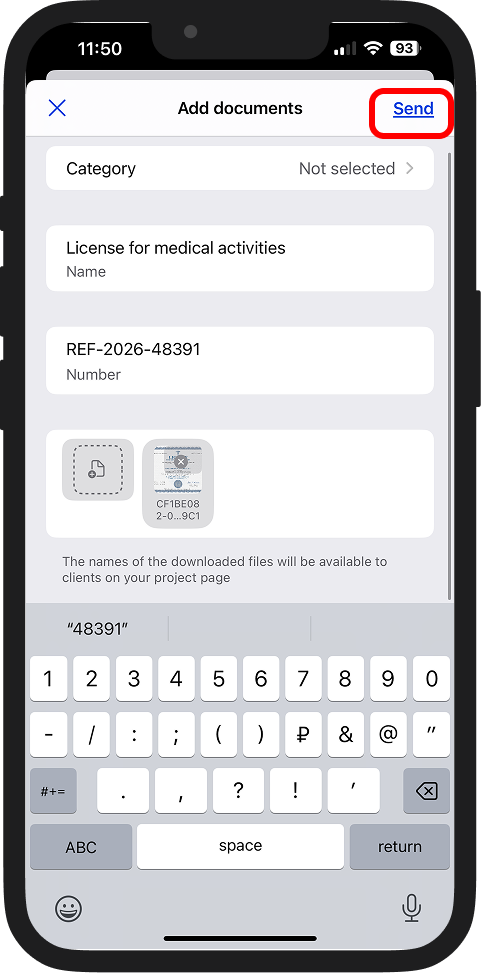
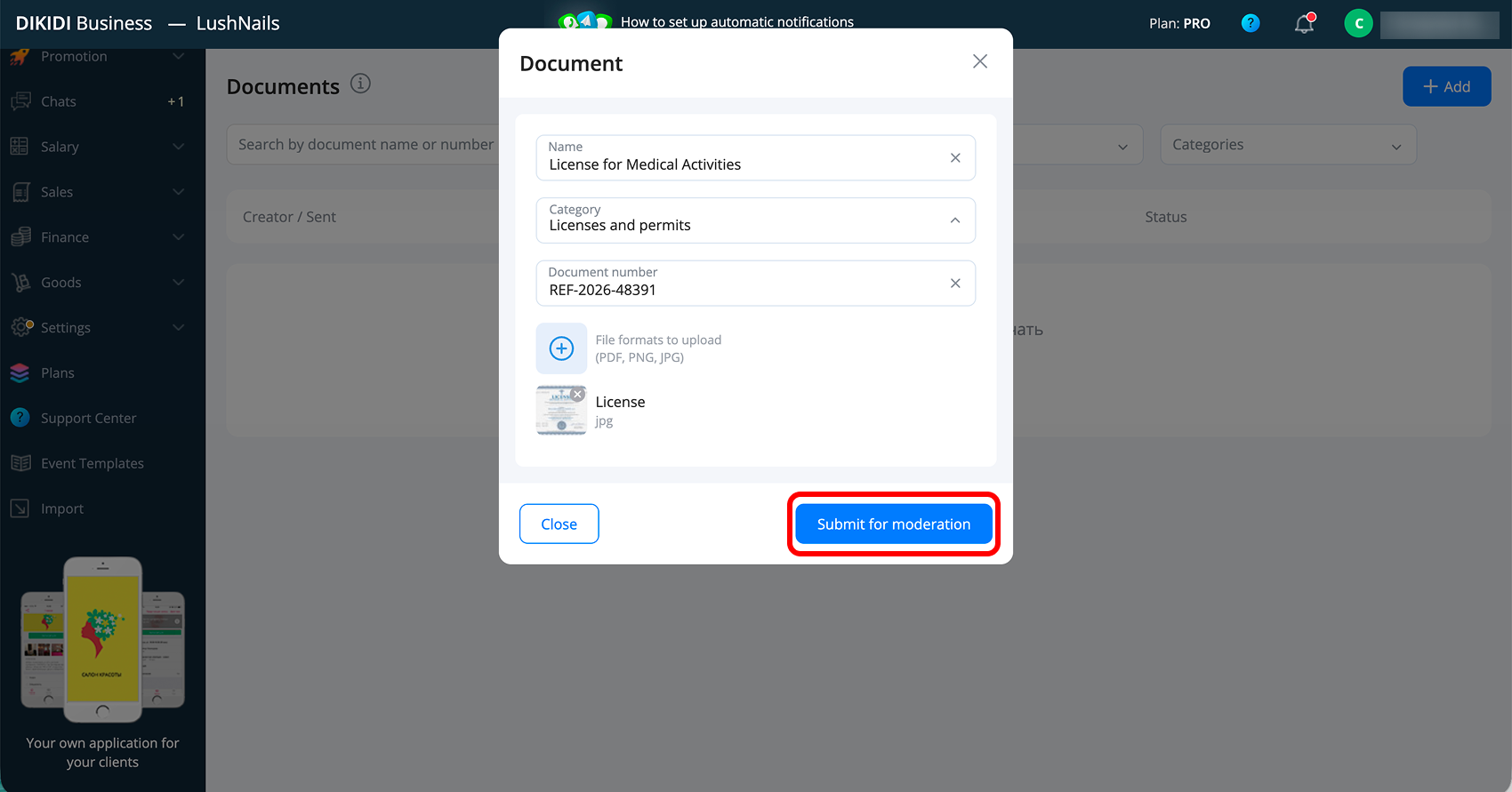
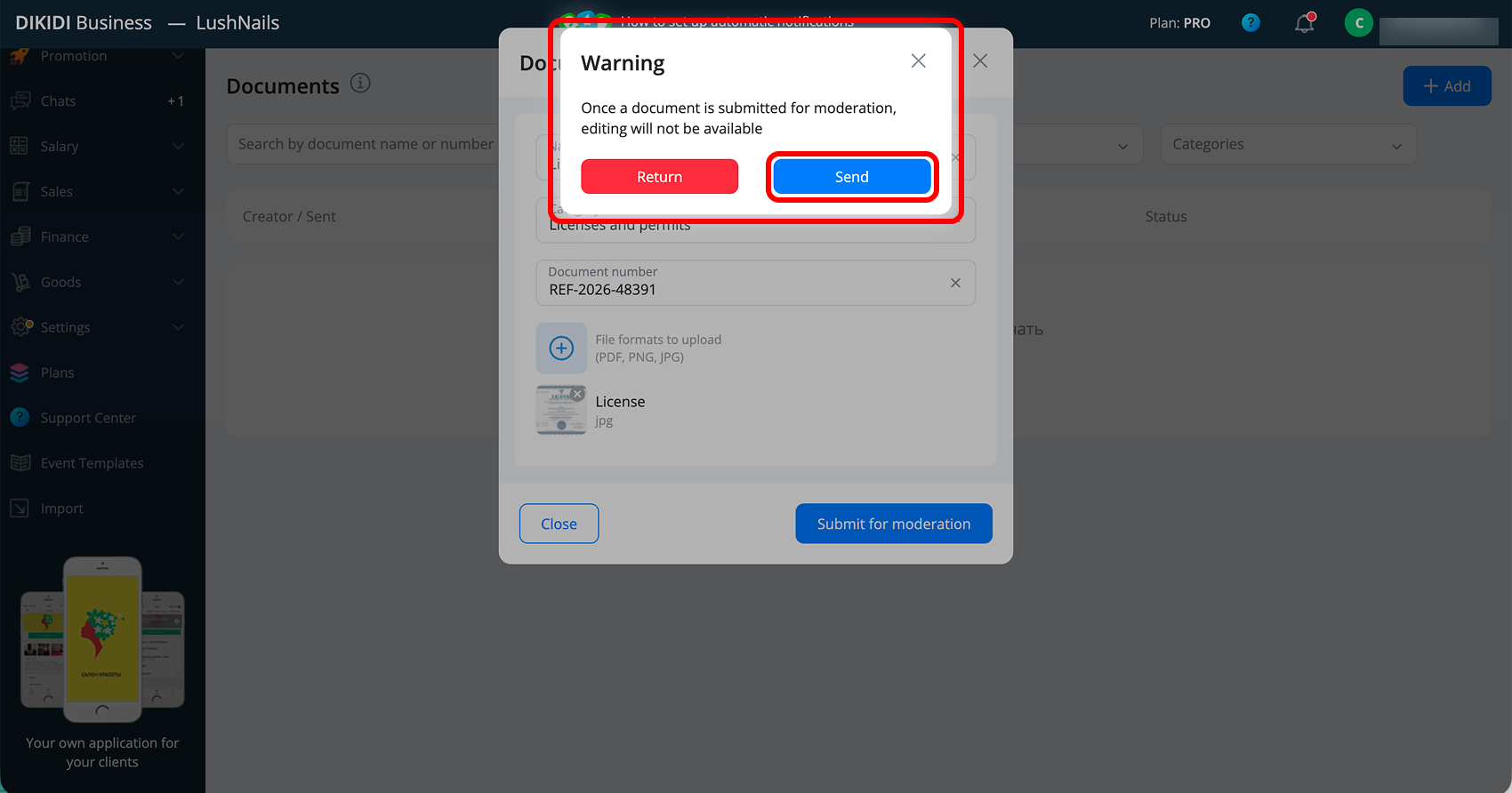
6️⃣ Click "Submit for moderation" (in the app – "Send") – the document will be sent for review.
After this, a warning will appear: "Once a document is submitted for moderation, editing will not be available" – with the choices "Return" and "Send".
⚠️ Important! The document must necessarily have a filled-in number or an attached enclosure, or preferably both. Without this, it will not be possible to save the document.

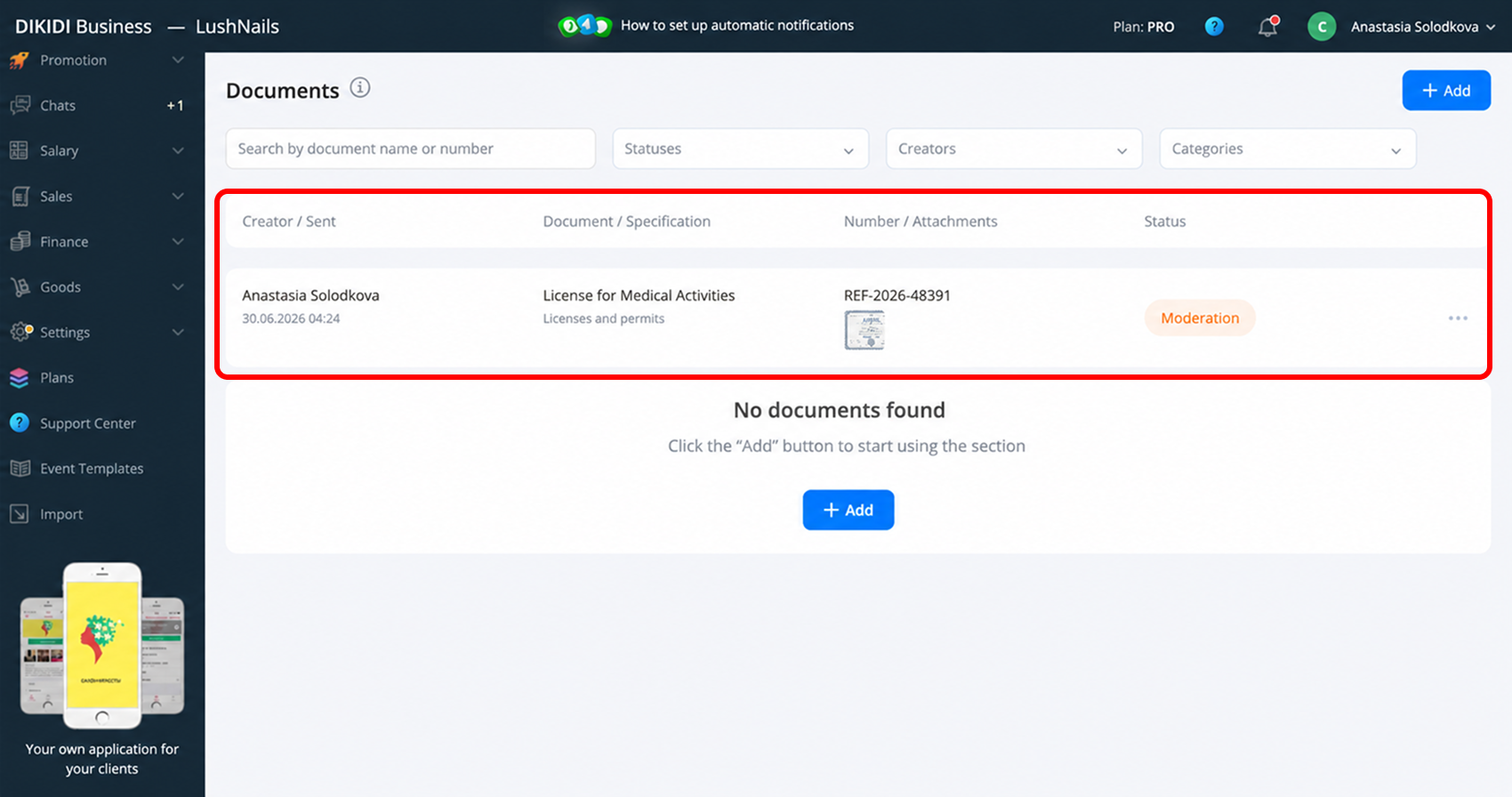
Moderation
The document does not appear immediately – all uploaded documents pass a review by a moderator and appear on the project page in DIKIDI Online only after confirmation. This protects clients from unreliable information and maintains trust in the platform.
Each document displays its status:
🔹 Moderation – the document is sent and awaiting review;
🔹 Declined – the document did not pass the review. The reason is indicated nearby, for example "Poor quality / unreadable" or "Suspected alteration/forgery";
🔹 Confirmed – the document has passed moderation and is visible to clients in DIKIDI Online.
If the document is rejected, you will see the reason and be able to correct the data.
Making changes
You can only edit a document with the “Declined” status. Open such a document from the list, read the reason for rejection, and make edits. Then click the "Submit for moderation" button (in the app – "Send") – the document will again go for review.
⚠️ Important! Confirmed documents and documents on moderation cannot be edited. If you want to change such a document, it will have to be deleted and added again.
Deleting a document
If a document is no longer relevant, it can be removed from the profile:
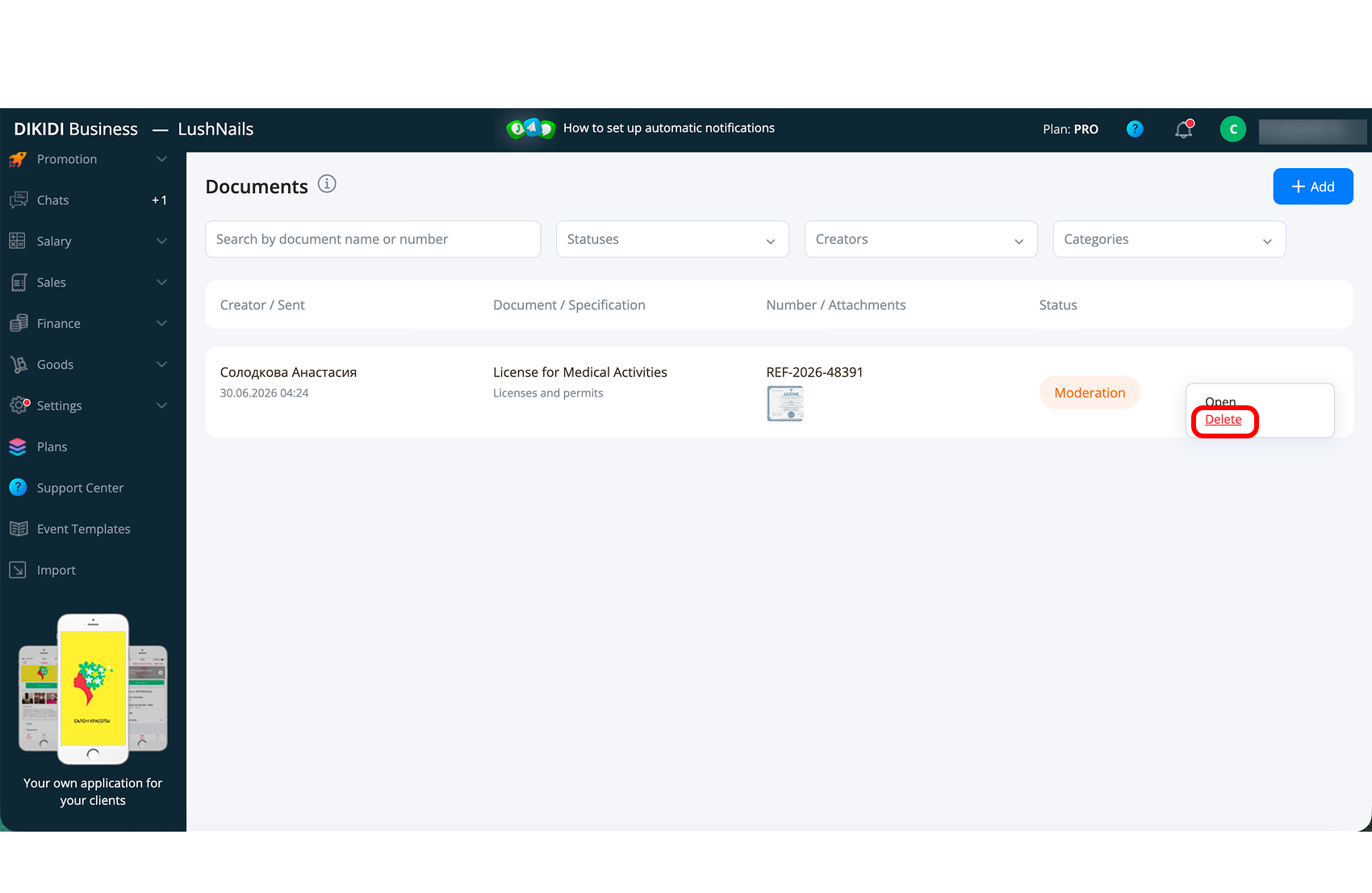
1️⃣ Select the required document from the list, then either enter the document (in the app), or click the three dots on the right (in the web version);
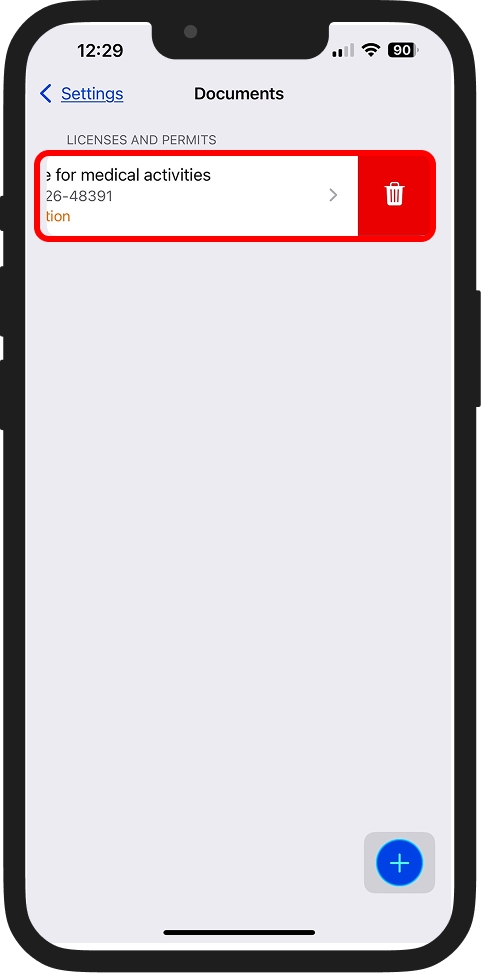
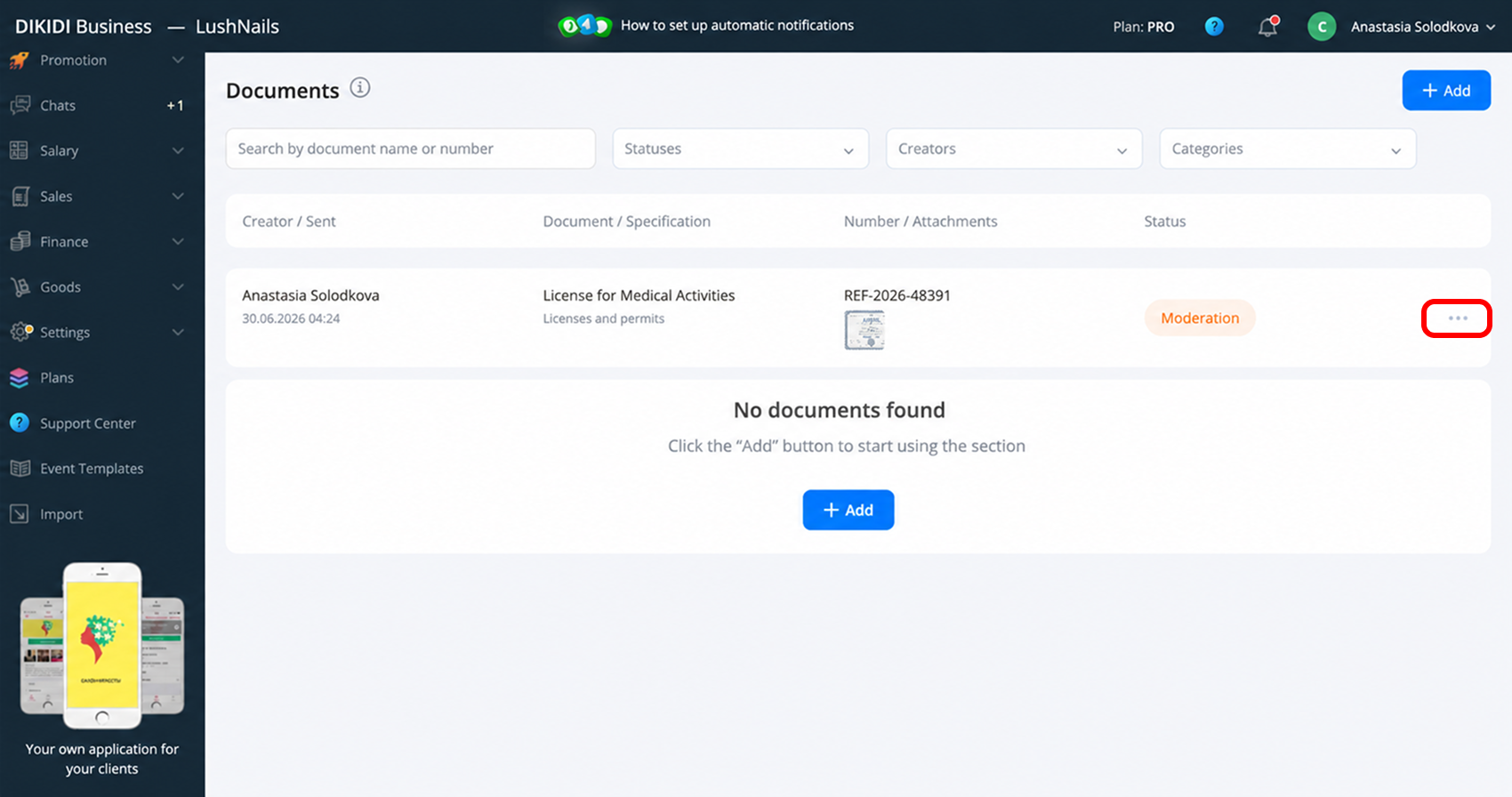
2️⃣ Click "Delete";
3️⃣ Confirm the action in the window "Do you really want to delete the document?" – the "Delete" button.
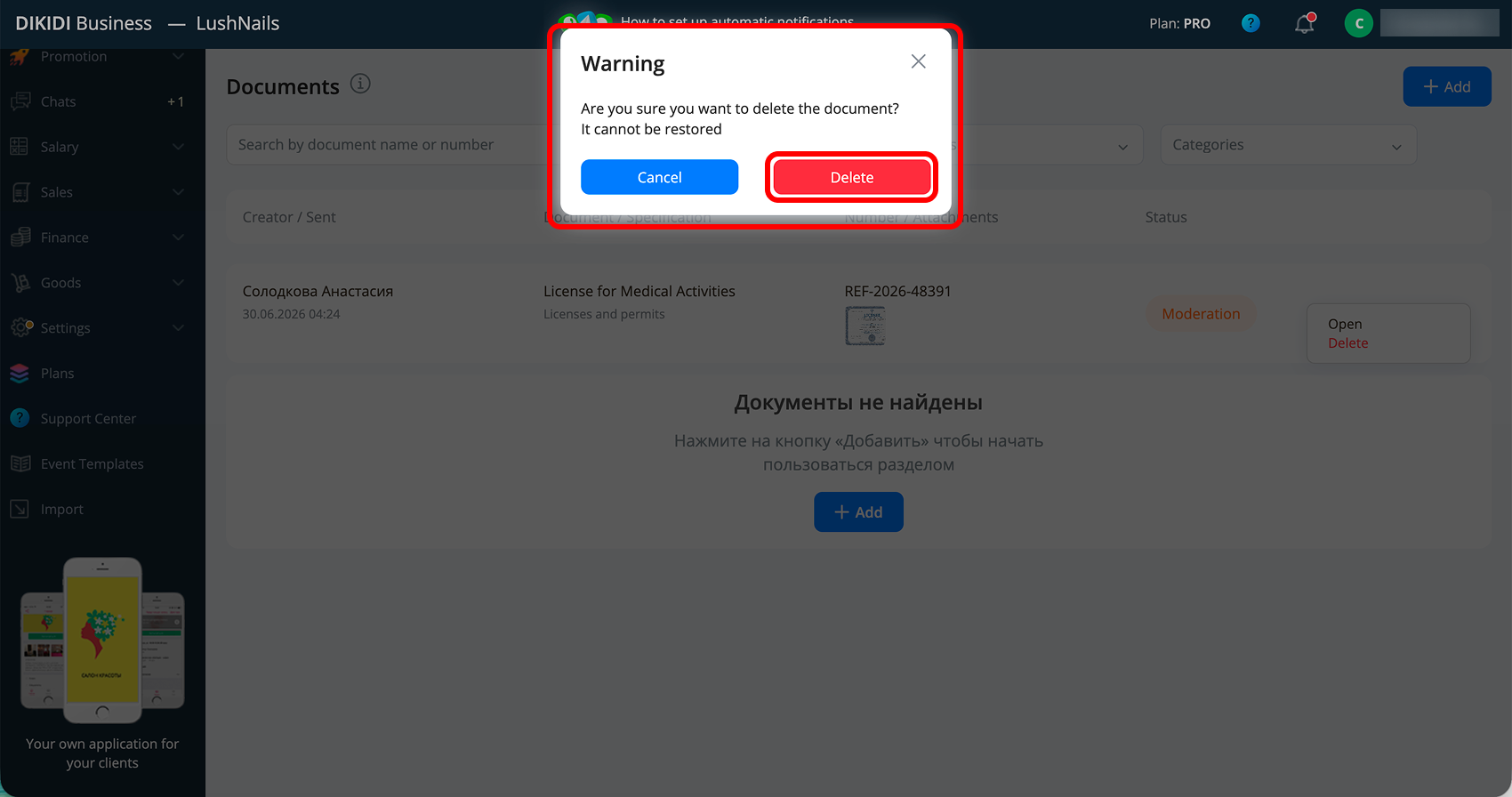
After deletion, you will return to the list of documents.
How clients see it
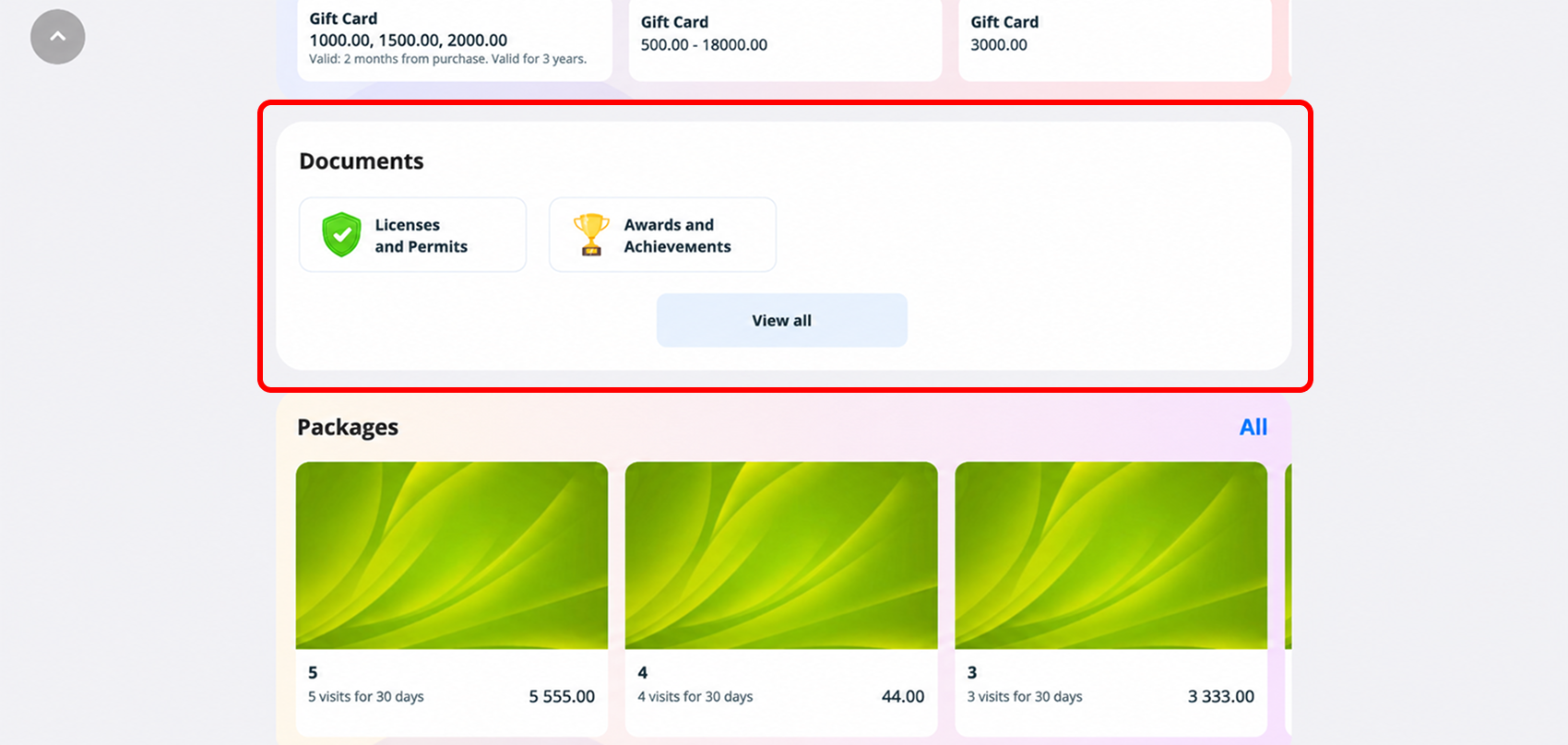
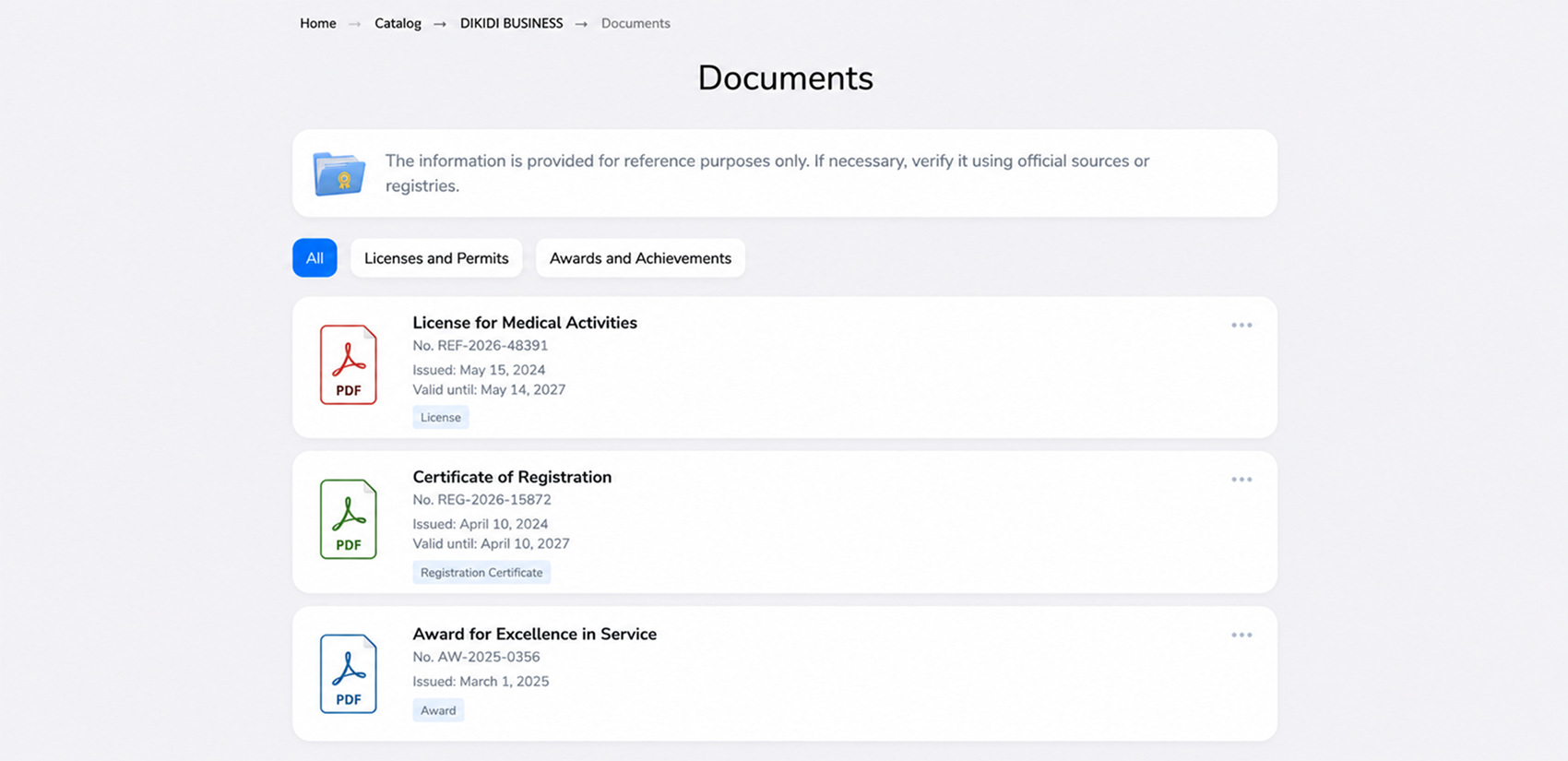
In DIKIDI Online, confirmed documents are displayed in the project profile in separate blocks – one for each category (for example, "Licenses and permits", "Certificates and diplomas"). A client can open the list, filter it by type, and, if necessary, copy the document number to verify the information in official registries.
The information is for reference purposes – a special tooltip in the section notifies the client about this.
FAQ / Frequently asked questions
✅ Where to find the "Documents" section? In the mobile application – as a separate item in the profile, section “Settings” → “Profile” → “Documents”. In the web version – section “Settings” → "Documents".
✅ What documents can be added? Licenses and permits, certificates and diplomas, awards and achievements, as well as other documents. Each document must be entered into one of these categories.
✅ How many documents can be uploaded and in what format? Up to 20 documents. Supported formats are PDF, JPG, and PNG. Multiple files can be attached to one document.
✅ What is required to be filled in? The "Name" field is required. Besides that, the document must have a specified number or an attached enclosure – without this, it will not be possible to save.
✅ Why didn't the document appear? All documents pass a review by a moderator and are displayed in DIKIDI Online only after confirmation. Before that, the document has the "Moderation" status.
✅ What to do if the document is declined? Correct the data and click "Submit for moderation" (in the app – "Send") – the document will again go for review.
✅ Is it possible to edit an already added document? This depends on the status. You can only edit a declined document – open it, make edits, and click "Submit for moderation" (in the app – "Send"). A confirmed document or a document on moderation cannot be edited: it will have to be deleted and added anew.
✅ How to delete a document? Select the document from the list (in the app – enter the document, in the web version – click the three dots on the right), click "Delete" and confirm the action.
✅ Who sees the names of the uploaded files? The file names are visible to clients on your project's page, so give them clear and correct names before uploading.