Flexible Online Booking Settings
Last modified:
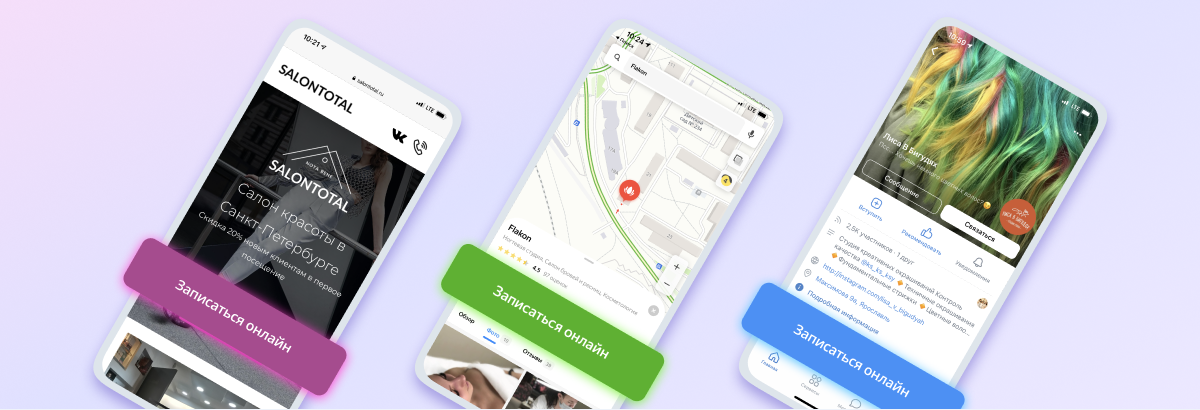
Online Booking in DIKIDI can be customized to the specifics of your business. You decide when, for which services, and to which staff customers will be able to book on their own.
The Online Booking feature is available absolutely for free ✨
Customers book at an inconvenient time
If you do not want customers to choose any free time, set up fixed intervals for Online Booking.
You can:
🔹 set up a fixed time by days of the week;
🔹 specify the available time for a specific date;
🔹 hide specific hours or whole days from Online Booking.
For example, on Monday and Tuesday, only slots at 12:00, 14:00, and 16:00 will be available to customers, and on other days – a different schedule. At the same time, you will still be able to create appointments manually.
📖 Read more: Fixed time for booking
Inconvenient gaps appear in the schedule
For this, use the "Optimal time" feature.
The system analyzes the duration of appointments and offers customers only those slots that help fill the schedule without unnecessary gaps.
For example, if most services take about two hours, customers will only have access to suitable time intervals. This helps avoid free gaps that are difficult to fill with other appointments.
You can enable the feature in the "Online Booking" section (for a freelancer) or in the staff card (for a company).
📖 Read more: Optimal time for booking. Minimizing "gaps"
The duration of the service is determined during the consultation
If the duration of a service cannot be determined in advance, it can be excluded from Online Booking. In this case, customers will be able to independently book other services, and you will create such appointments manually after a consultation.
It can be configured in the service card.
Not all staff should be available for Online Booking
You can separately configure Online Booking for each staff member.
For example, if a specialist only works with their regular customer base, they can be disabled from Online Booking. At the same time, the rest of the staff will remain available for customers to book on their own.
The setting is located in the staff card in the "Staff" section.
How to Restrict Bookings for Problematic Customers
If a customer regularly violates visitation rules, you can add them to the blacklist. After that, they will no longer be able to book with you on their own via Online Booking.
The setting is available in the customer card in the "Customers" section.
How to reduce the number of no-shows
Prepayment can be set up for specific services, staff, or time intervals.
Prepayment helps:
🔹 increase customer responsibility;
🔹 reduce the number of cancellations and no-shows;
🔹 protect the schedule from accidental bookings.
📖 Read more: How to Set Up Prepayment in DIKIDI