Packages statistics
Last modified:
You can view statistics on sold packages in two ways.
Method 1
1️⃣ Go to the "Control" → "Packages" section and open the card of the desired package template;
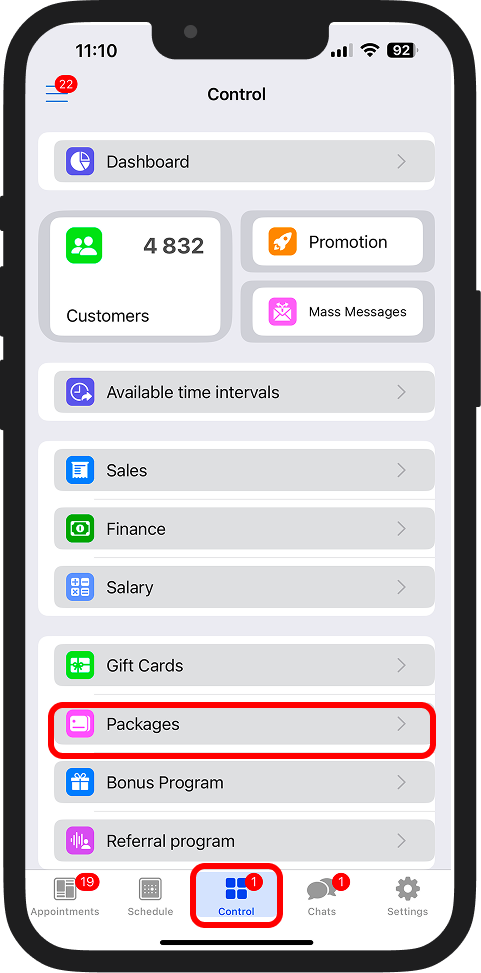
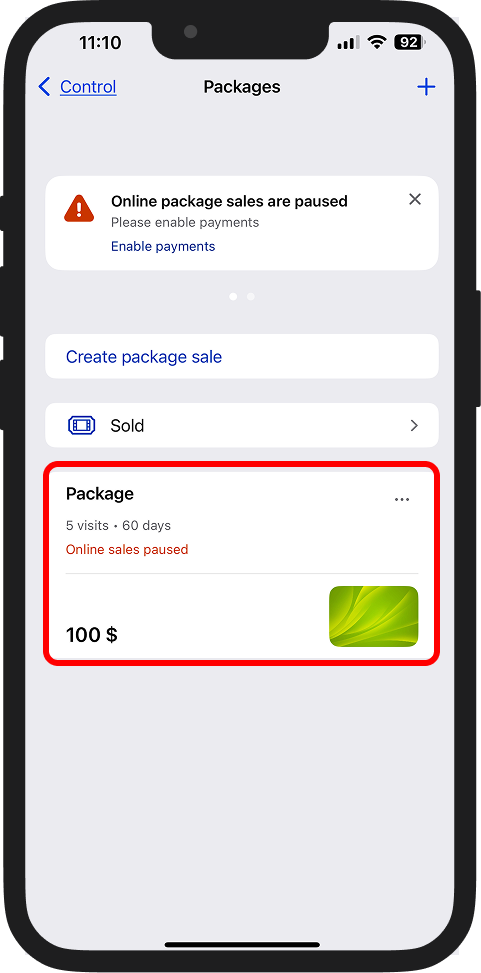
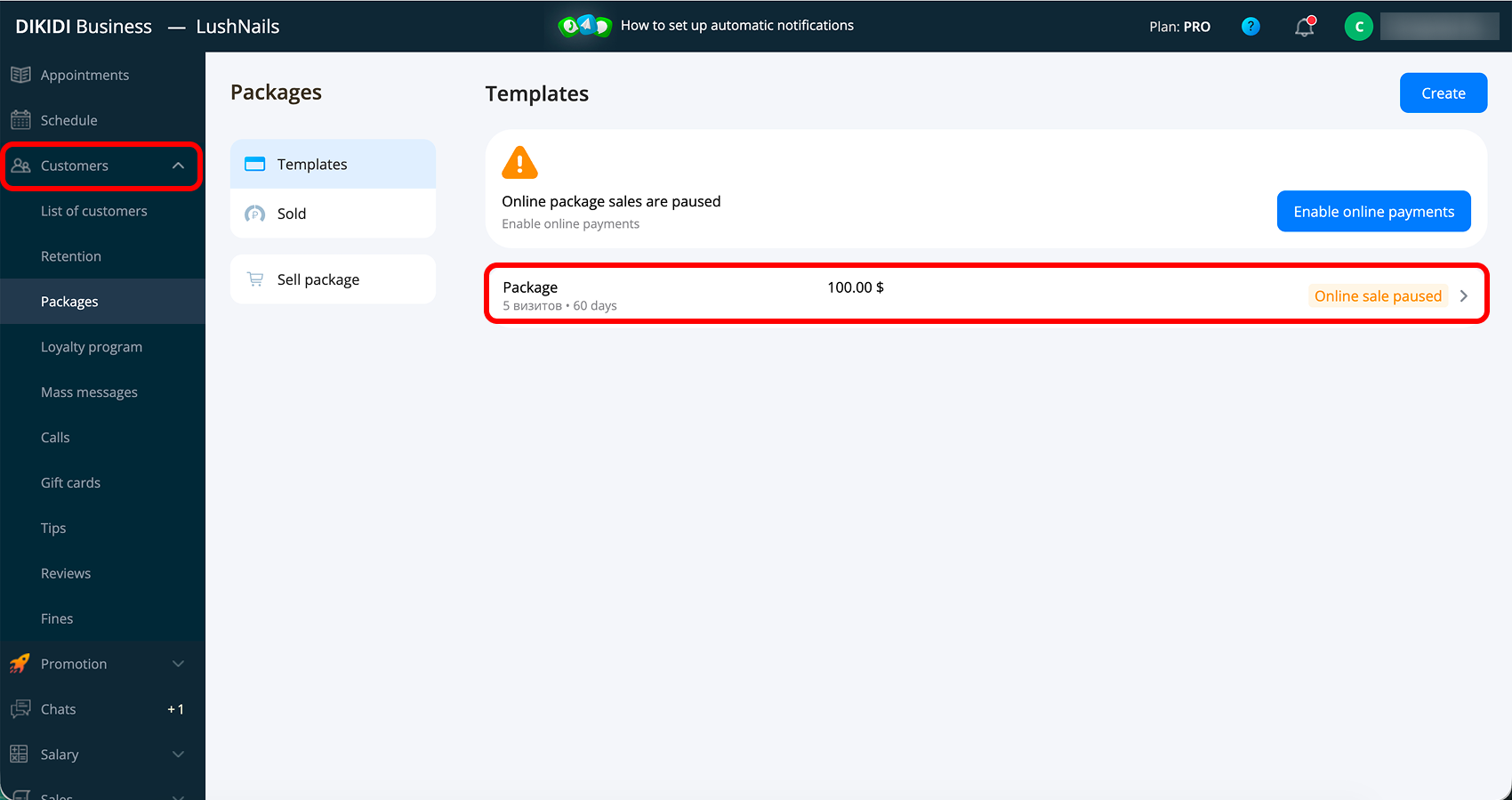
2️⃣ Here all conditions, list of services and statistics are displayed. By default, statistics are shown for the current month – you can change the month or select "All time".
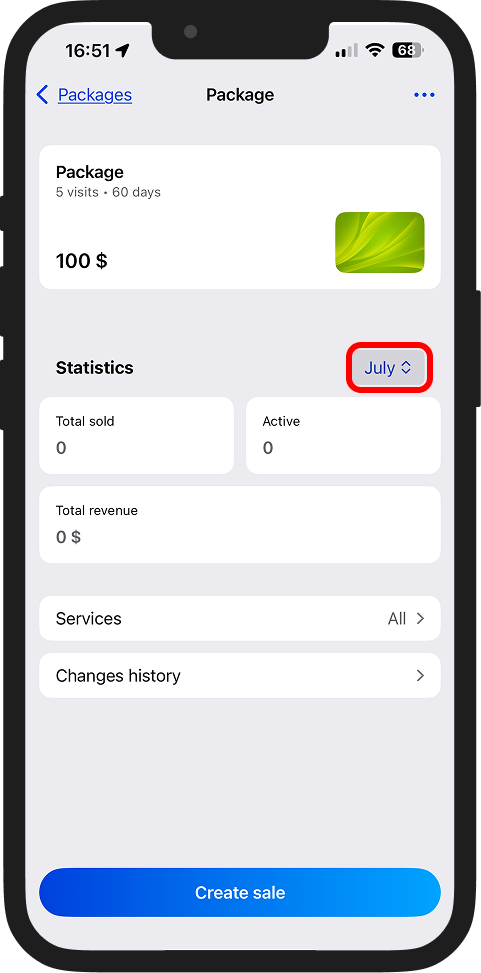
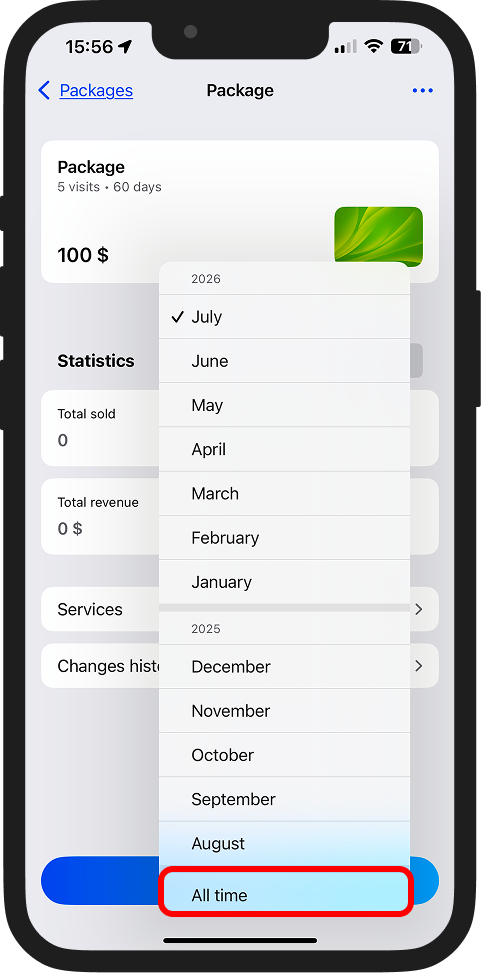
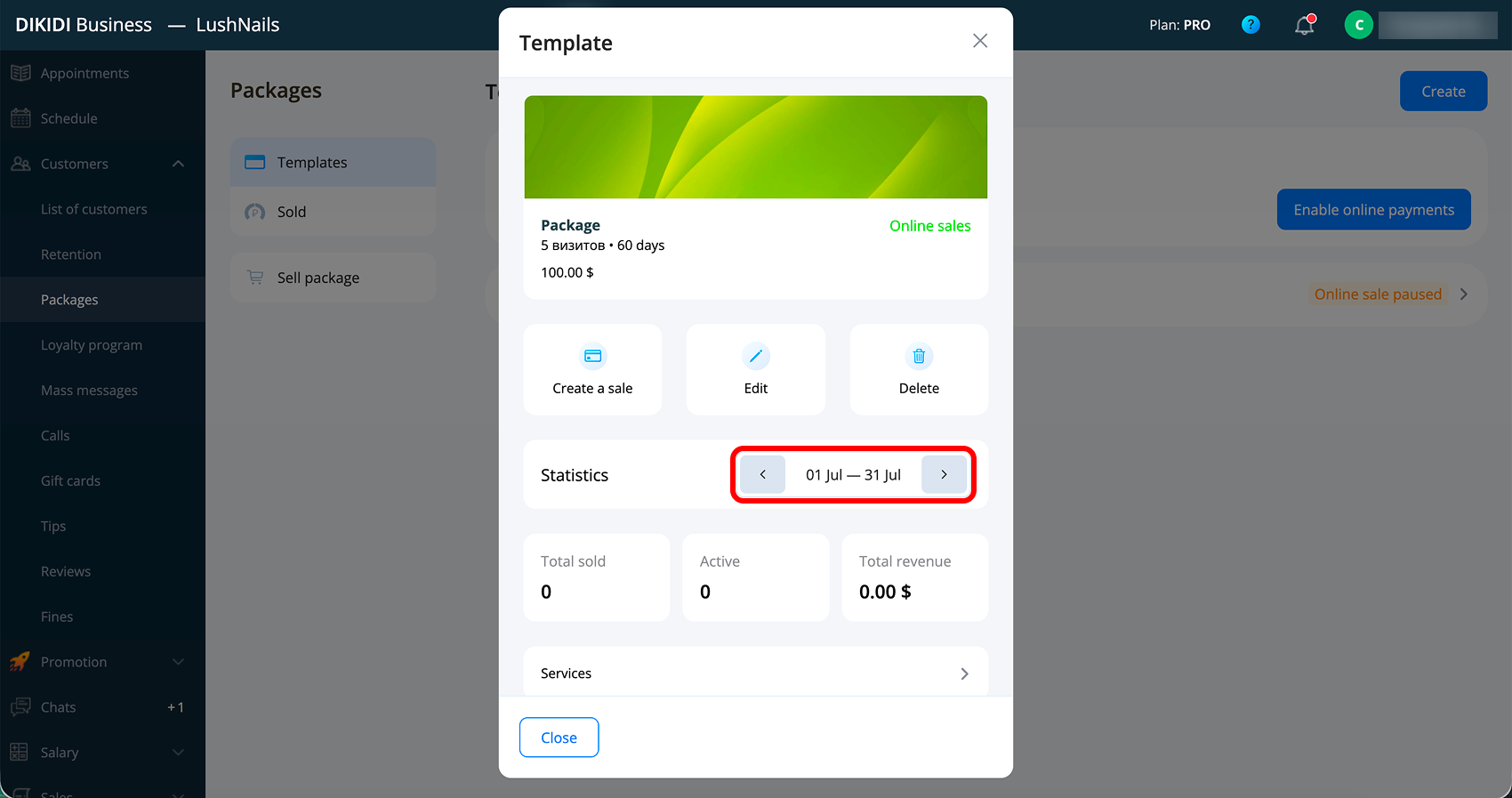
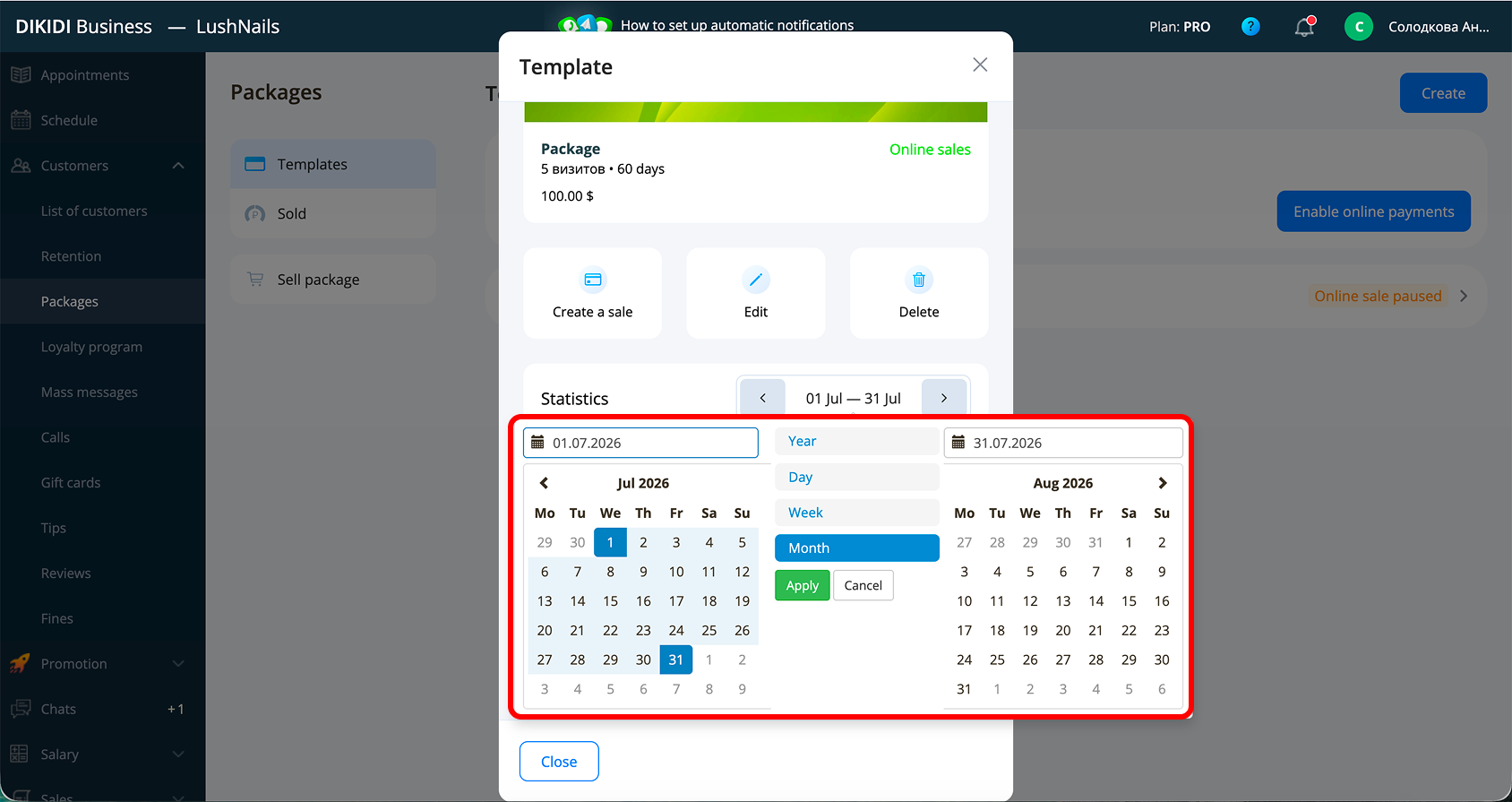
The statistics display:
🔹 “Total sold” – the total number of sold packages for the selected period;
🔹 “Active” – how many activated and ready-to-use packages customers currently have;
🔹 “Total revenue” – the sum of sales for this package template.
Method 2
1️⃣ Go to the "Control" → "Packages" section and click "Sold";
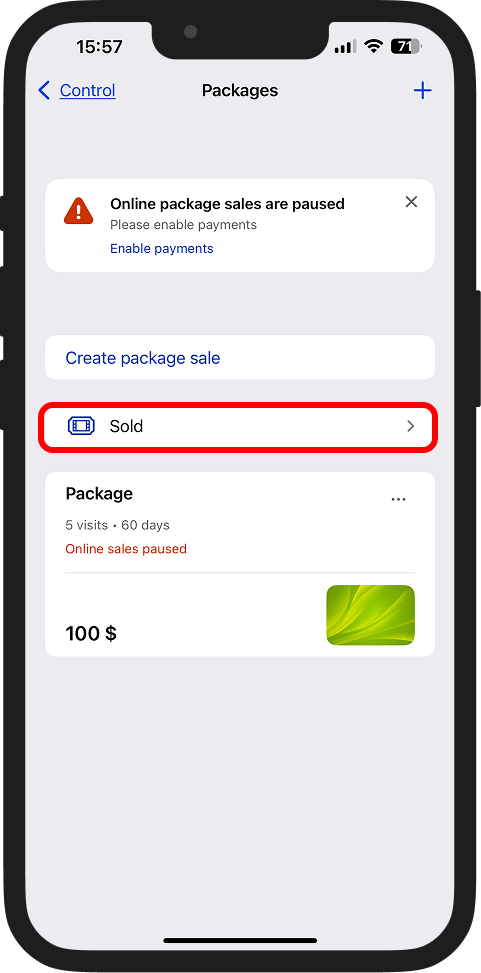
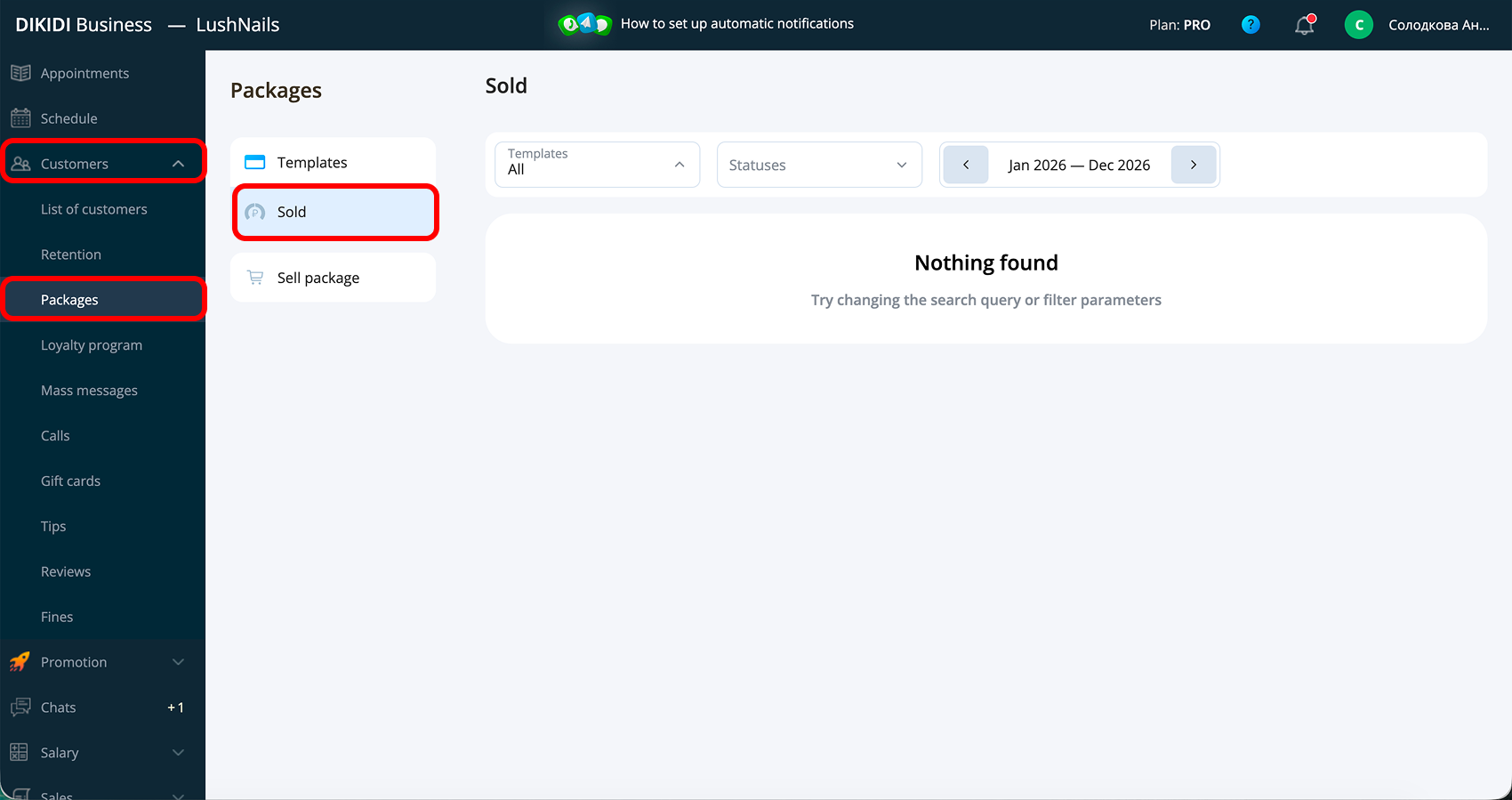
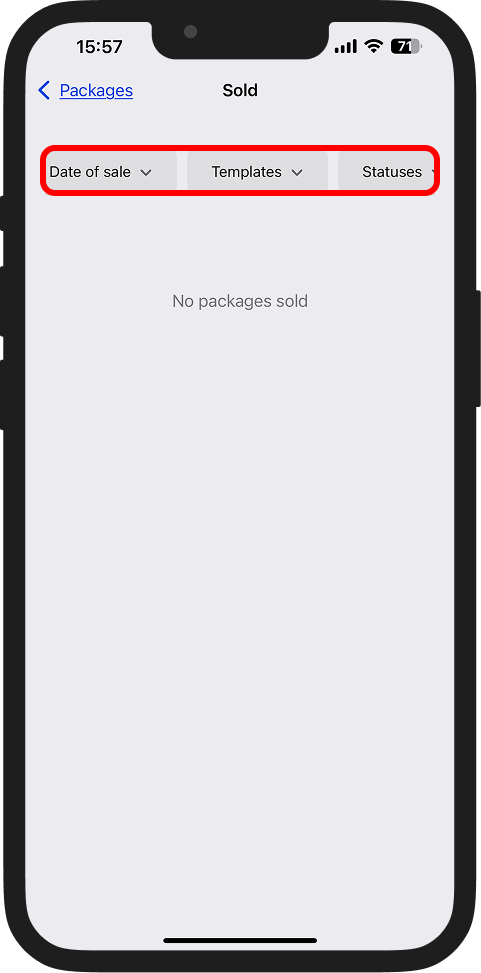
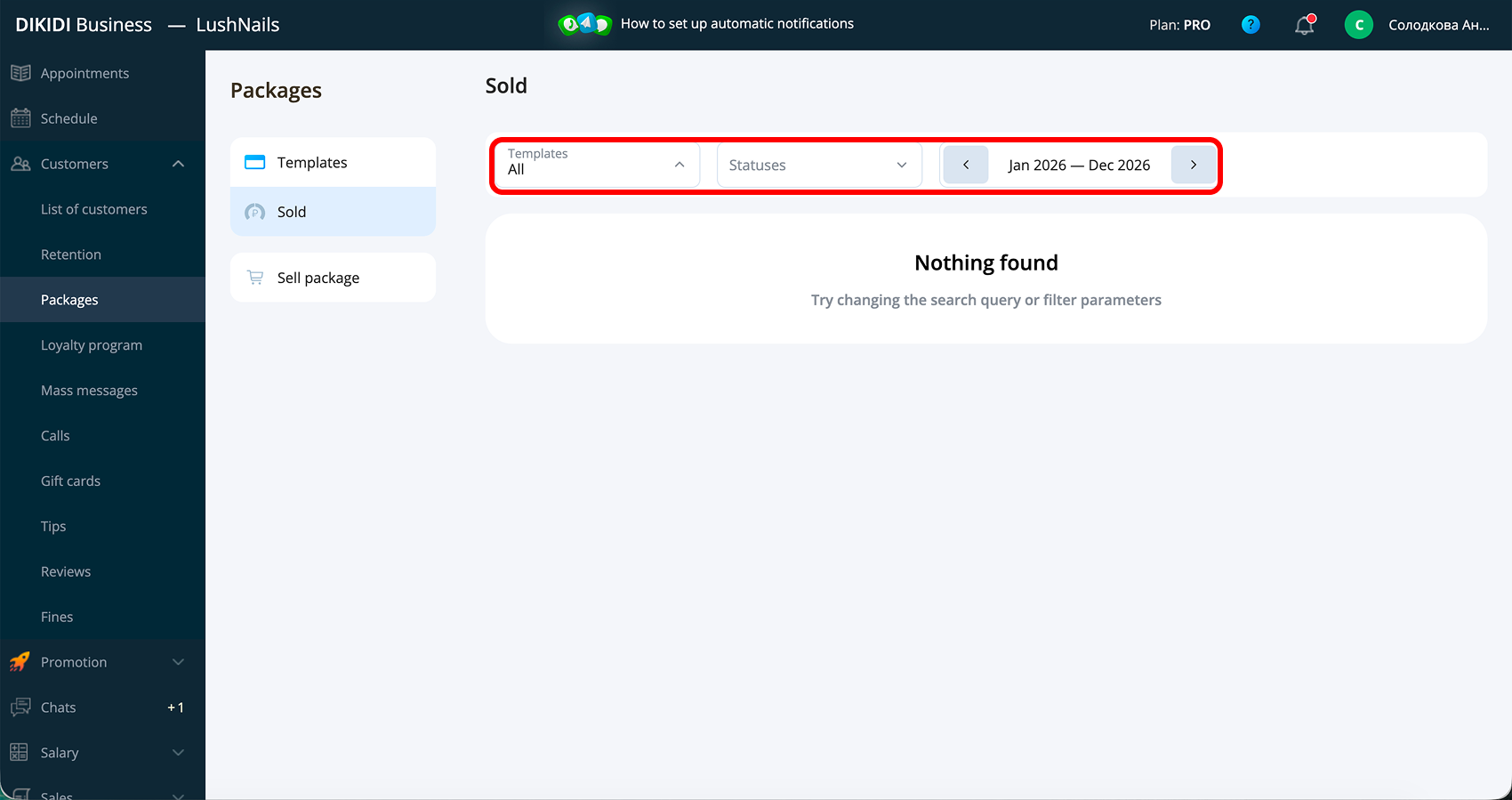
2️⃣ Here the statistics for all sold packages are displayed. You can filter it by sale date, package template, or status.
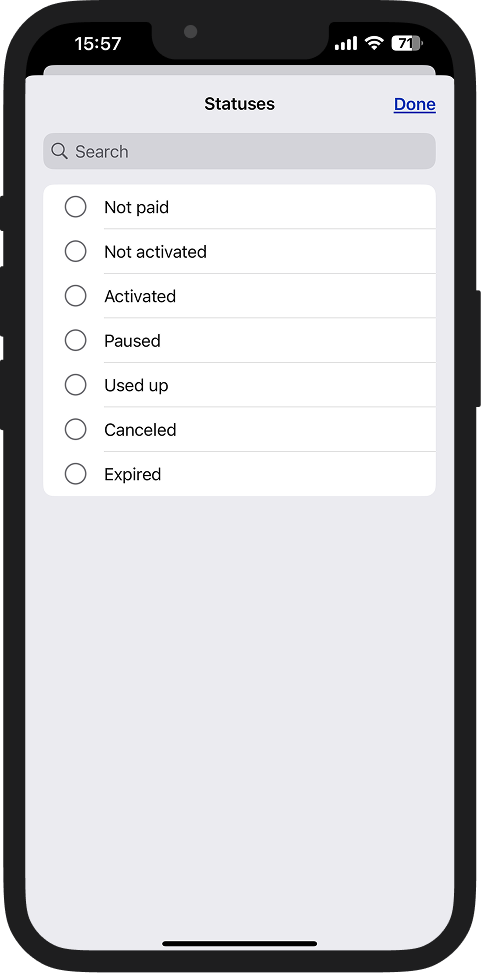
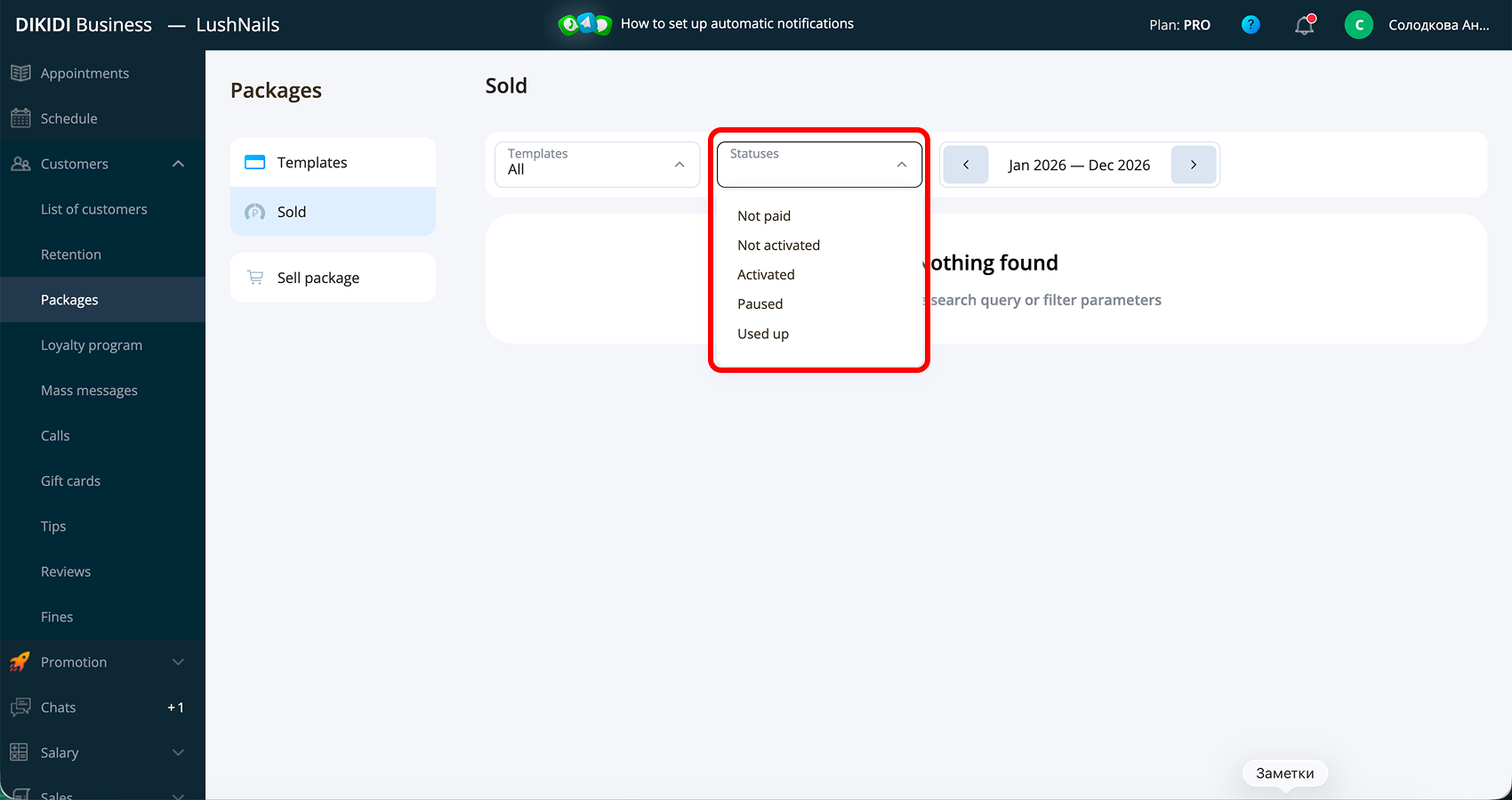
Available statuses:
- Not paid – the package has not been paid for;
- Not activated – the customer bought a package with the "On first visit" activation type and has not made a single visit yet;
- Activated – the package is available for use;
- Paused – the customer has suspended the package for a certain period;
- Used up – the customer has used all visits under the package;
- Cancelled – all visits under the package have been written off;
- Expired – the package has expired.
📚 Read also:
● Creating a package in DIKIDI