Mass messages to your customers in WhatsApp
Last modified:
WhatsApp is one of the most popular messengers for communicating with customers. In DIKIDI, you can send mass messages via WhatsApp from your number or business account.
In DIKIDI, you can set up mass messages via Telegram to effectively deliver important information to your audience. In this article, we will explain how mass messages in WhatsApp works and how to set them up correctly.
Connecting mass messages via WhatsApp
To send messages, you need to connect the channel “WhatsApp + “Notifications and mass messages”.
How to connect
Option 1
1️⃣ Go to the web version of the service on the website dikidi.net/business or to the DIKIDI Business mobile app and select the required project.
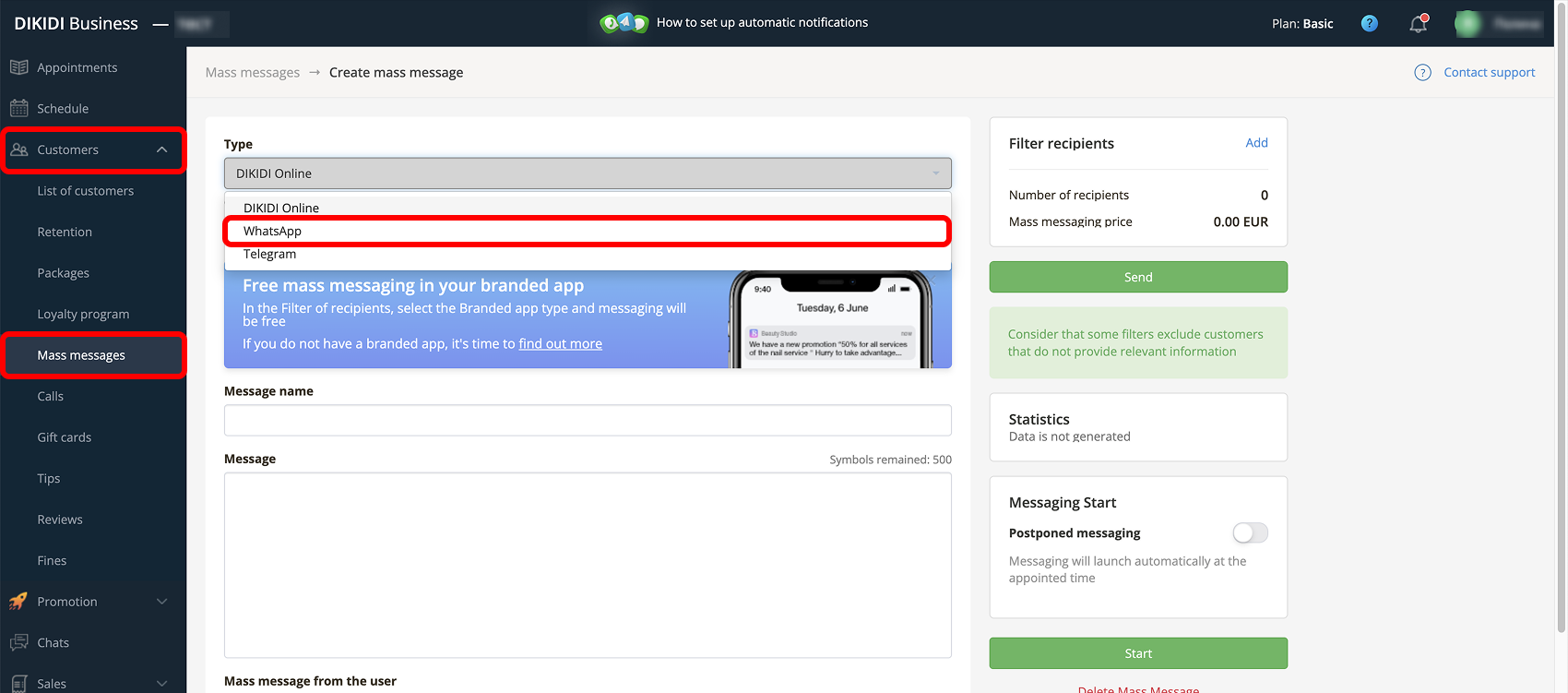
2️⃣ Go to the section "Control" → "Mass messages" and click “Create Mass message”.
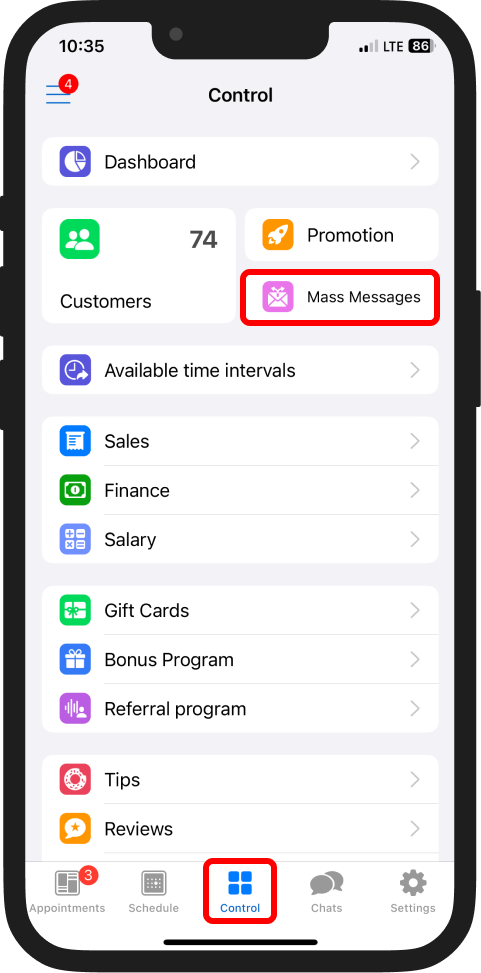
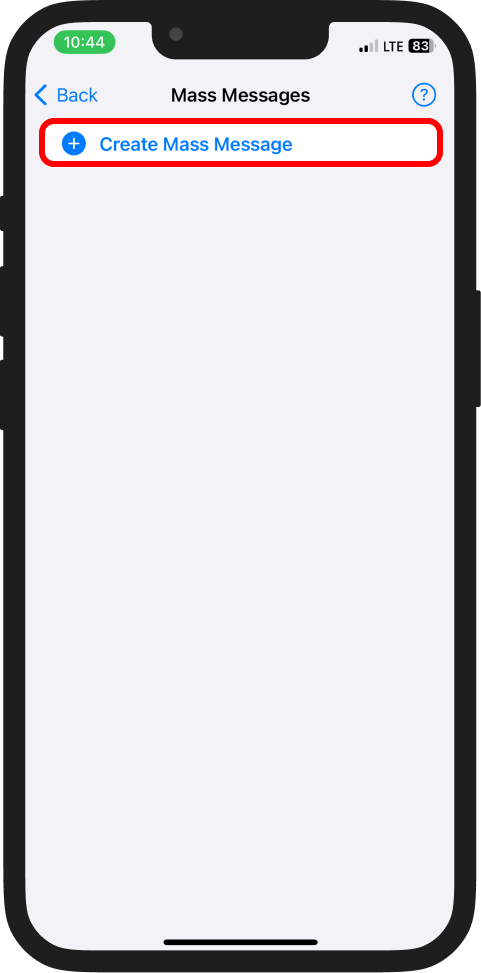
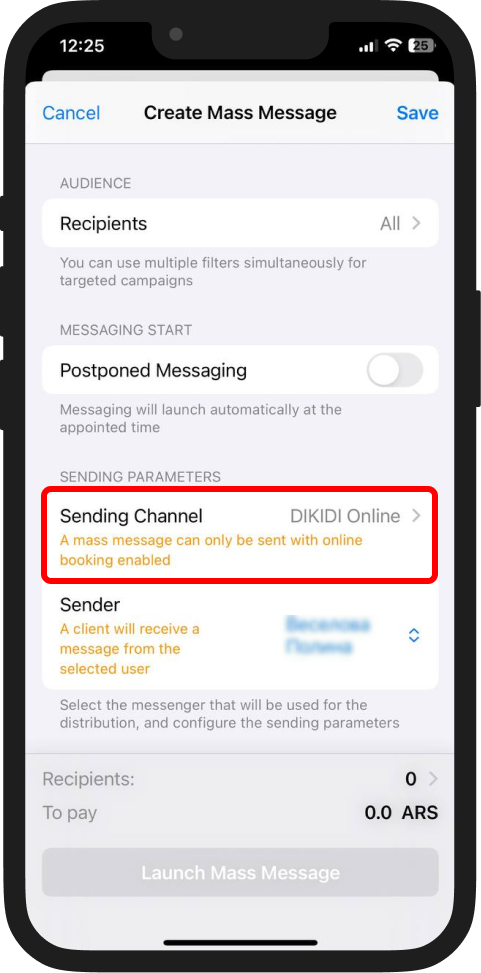
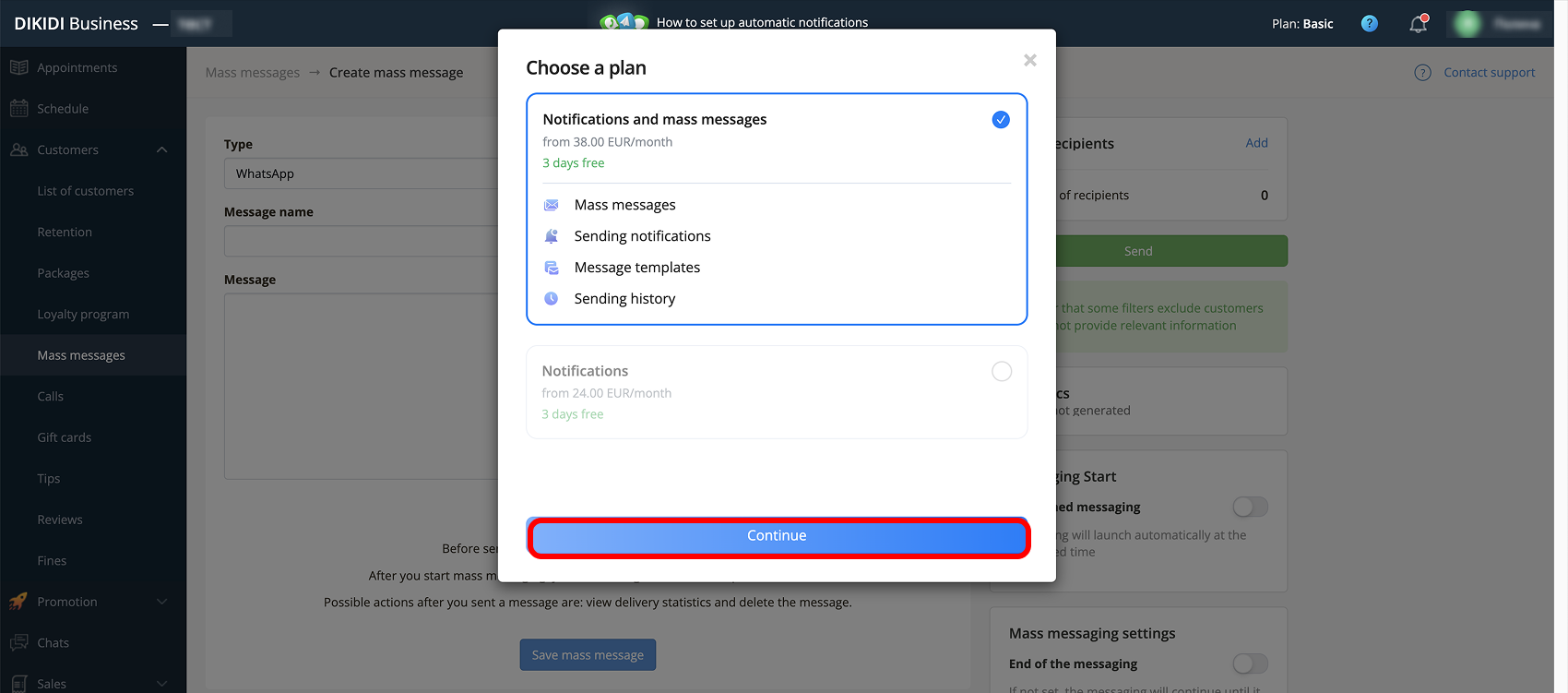
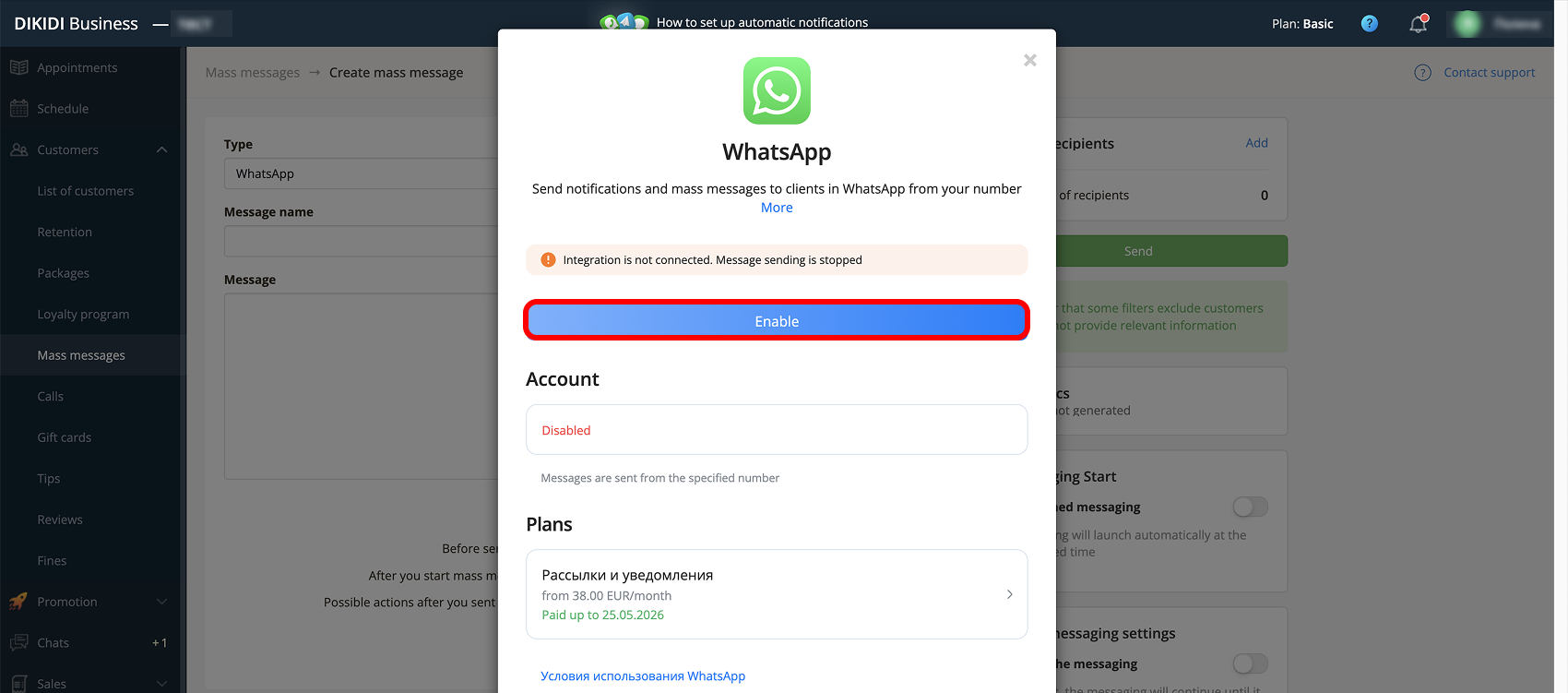
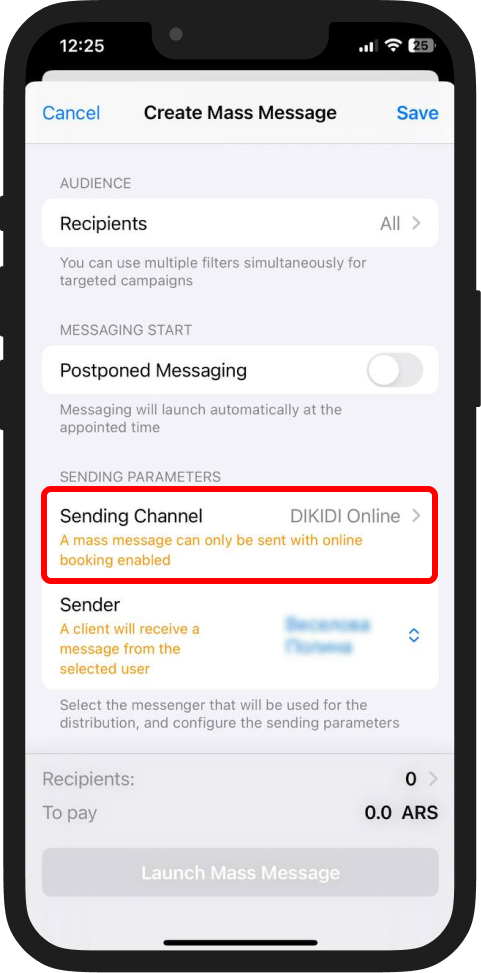
3️⃣ In this window, select "Sending Channel" and go to it. All available sending channels for messaging will be presented here.
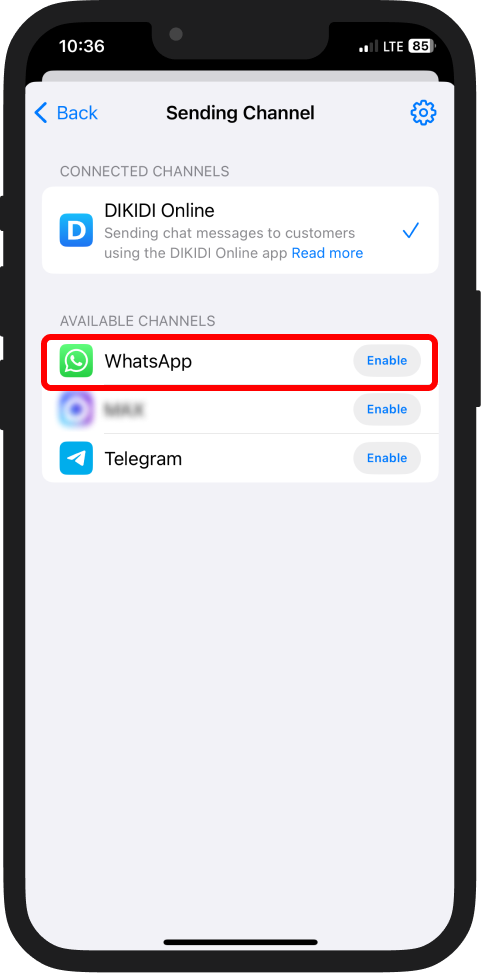
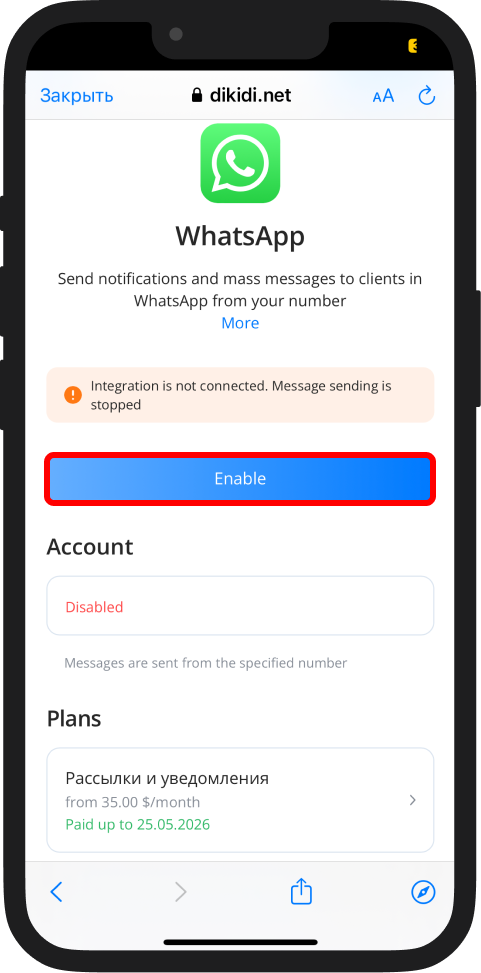
4️⃣ Find the WhatsApp channel and click "Enable";
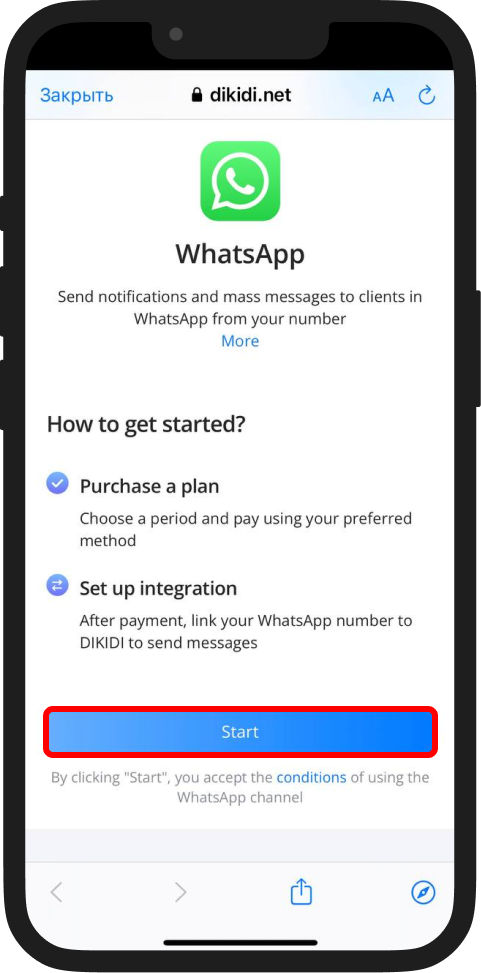
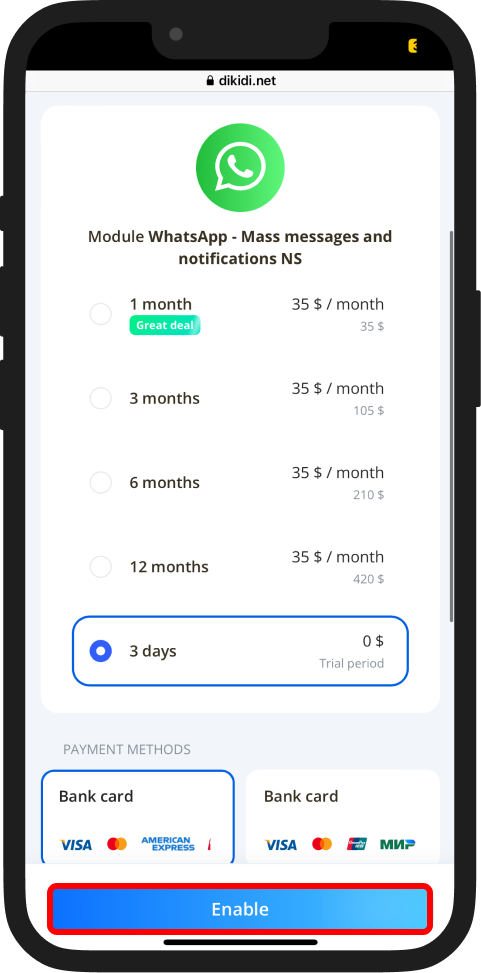
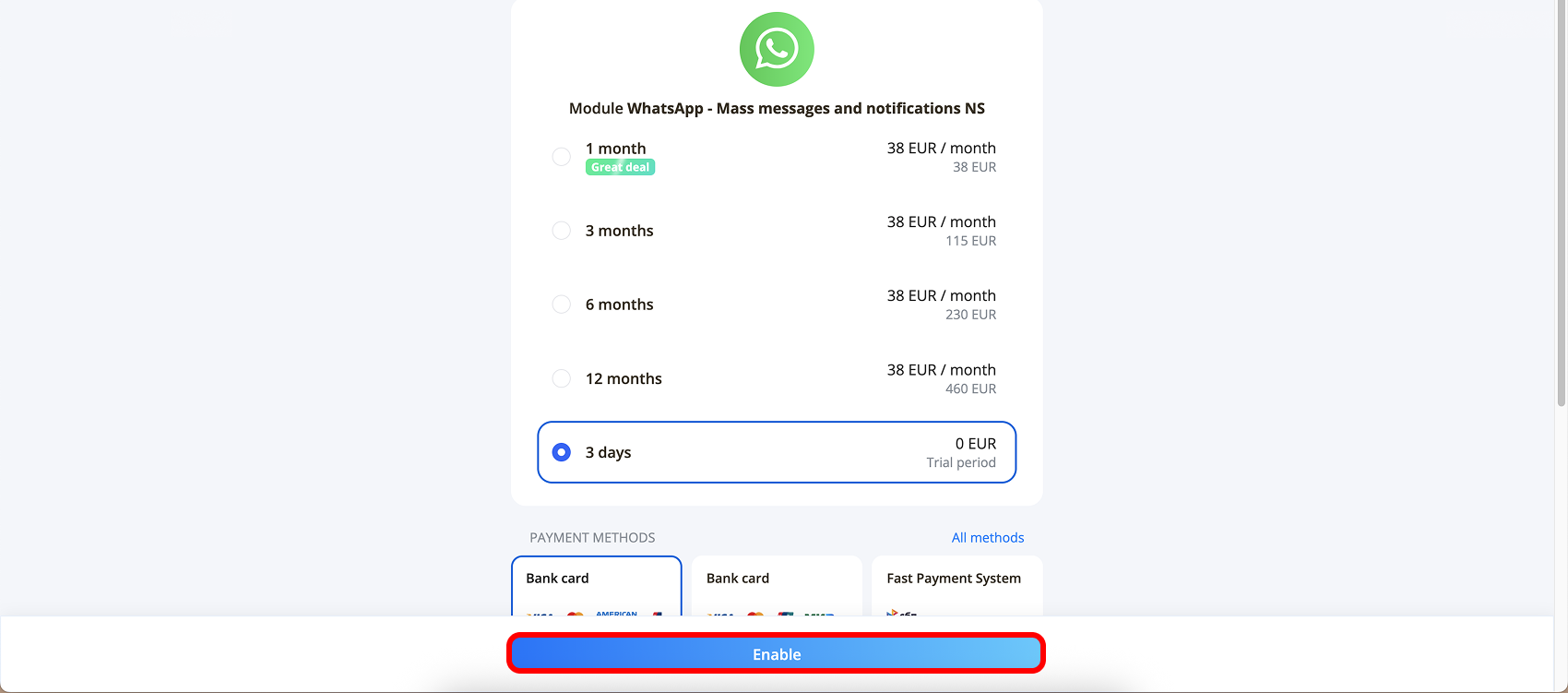
5️⃣ “WhatsApp + Mass messages and notifications” is provided for 3 days for free testing.
After the trial period ends, the channel will be disabled until payment and reconnection.
To activate the trial period, click on the promotional offer and confirm the action with the "Enable" button.
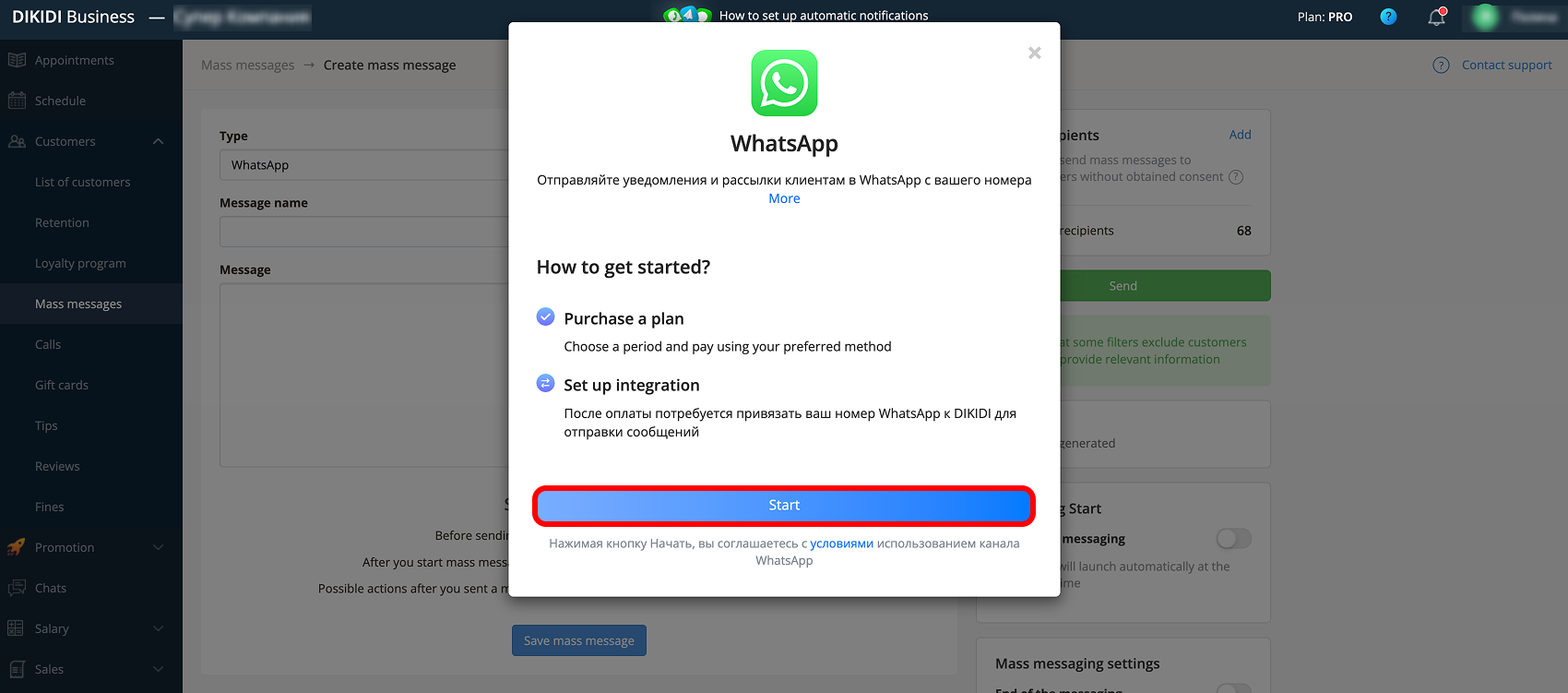
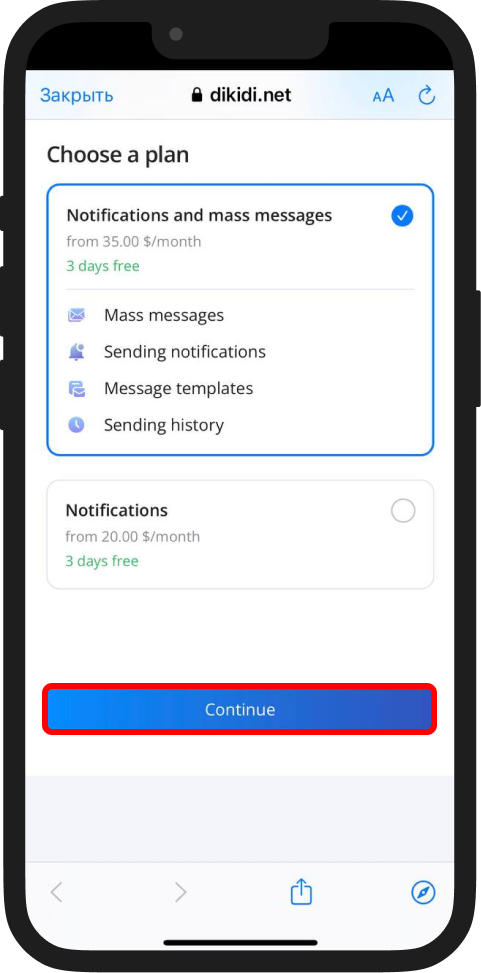
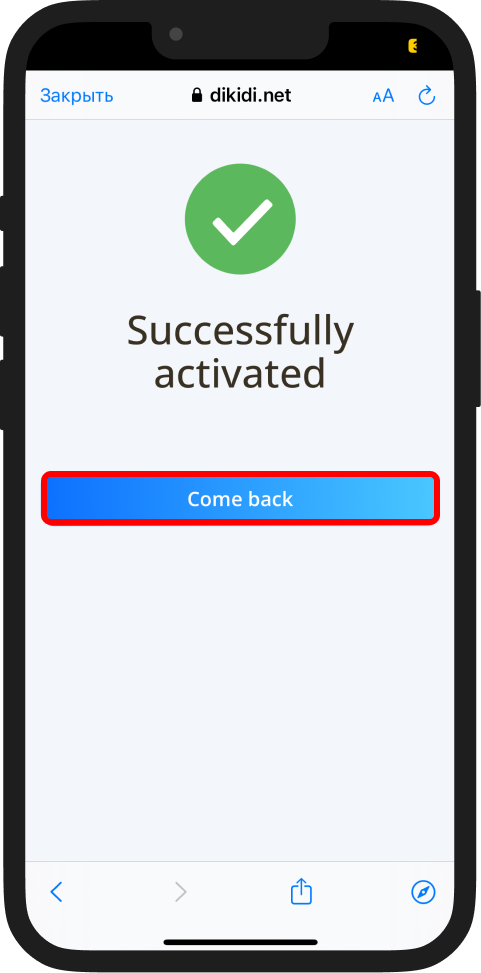
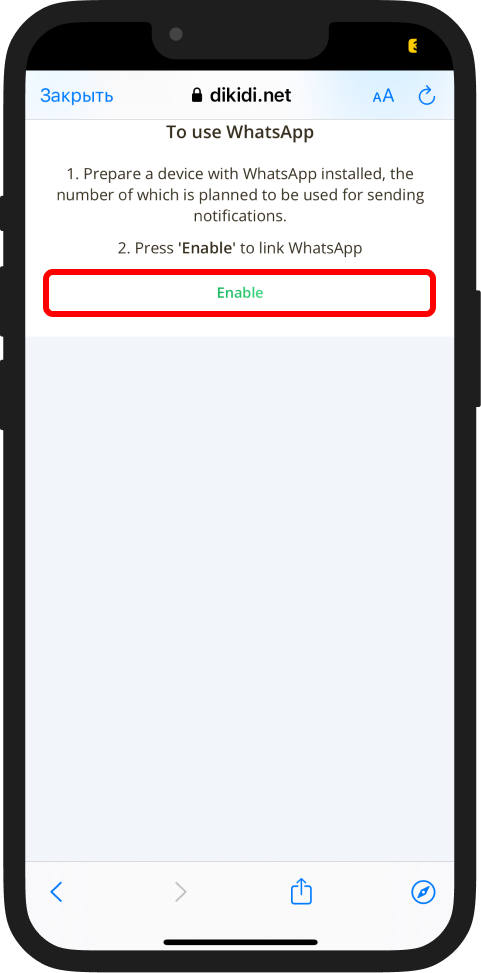
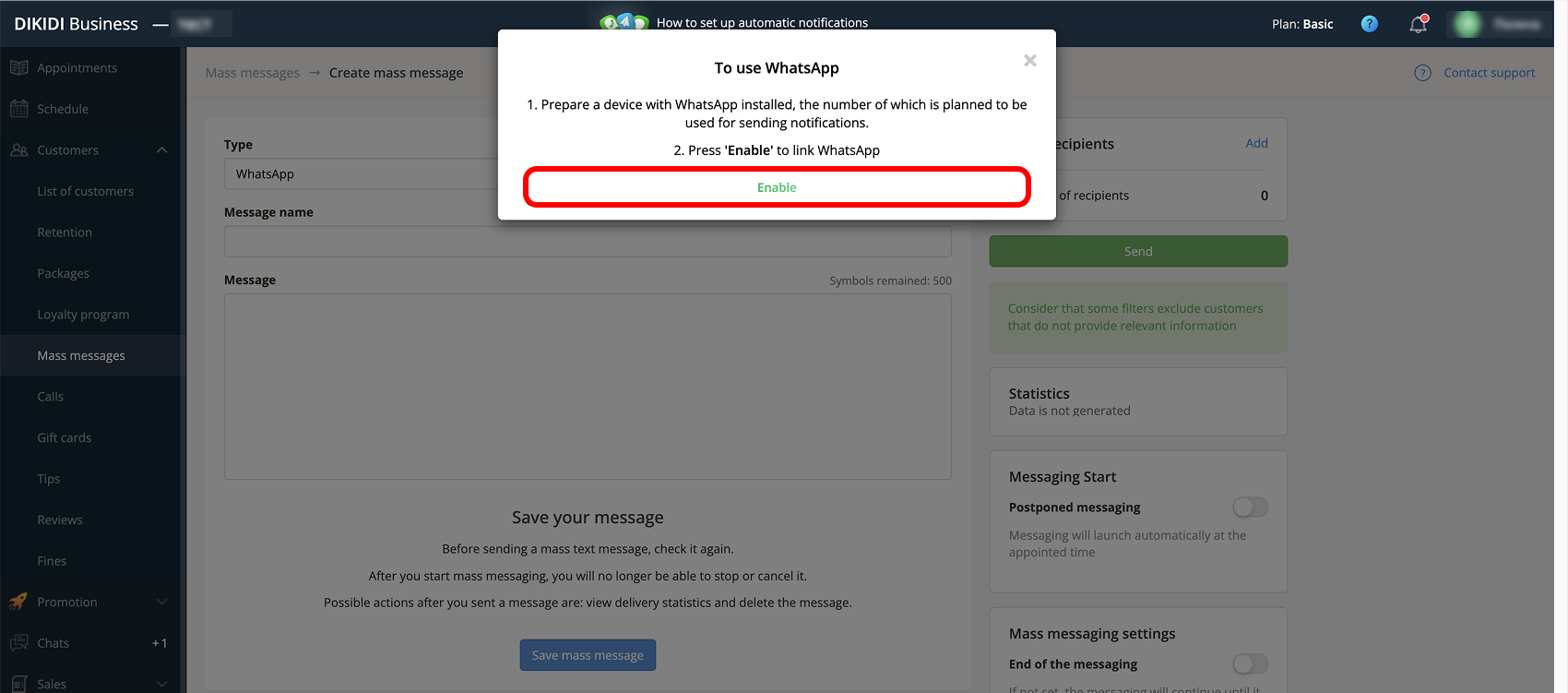
6️⃣ Click "Enable" to link the number to which the WhatsApp account is connected, from which messages will be sent.
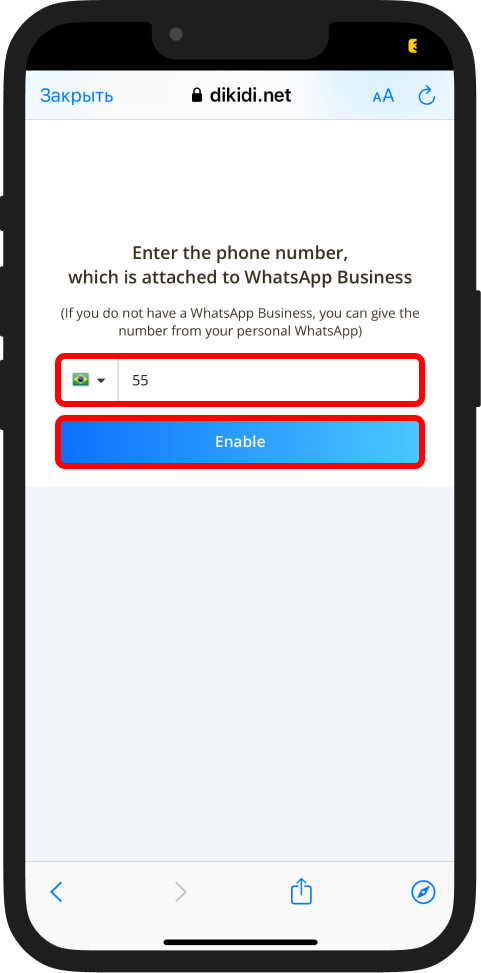
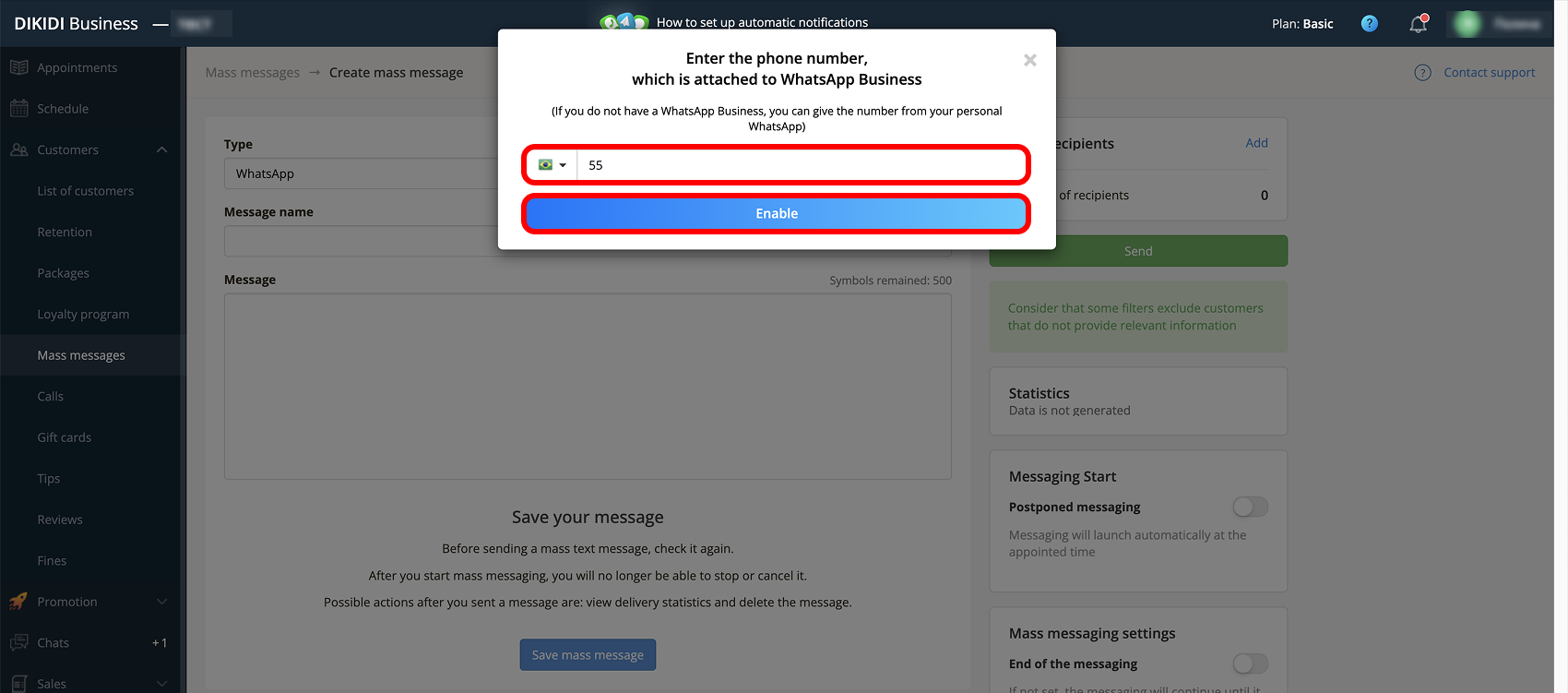
7️⃣ Prepare a second device with WhatsApp or WhatsApp Business installed. With it, you will be able to scan a QR code or enter a text code. Click “Enable”.
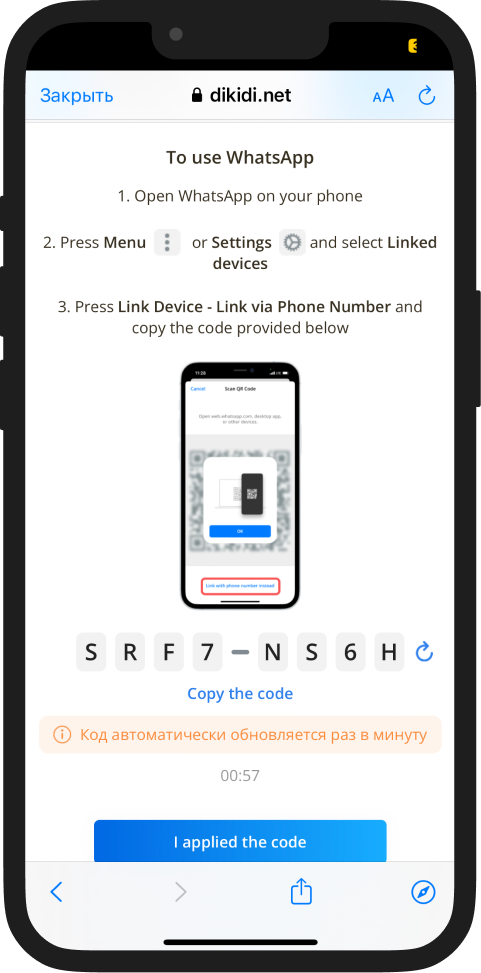
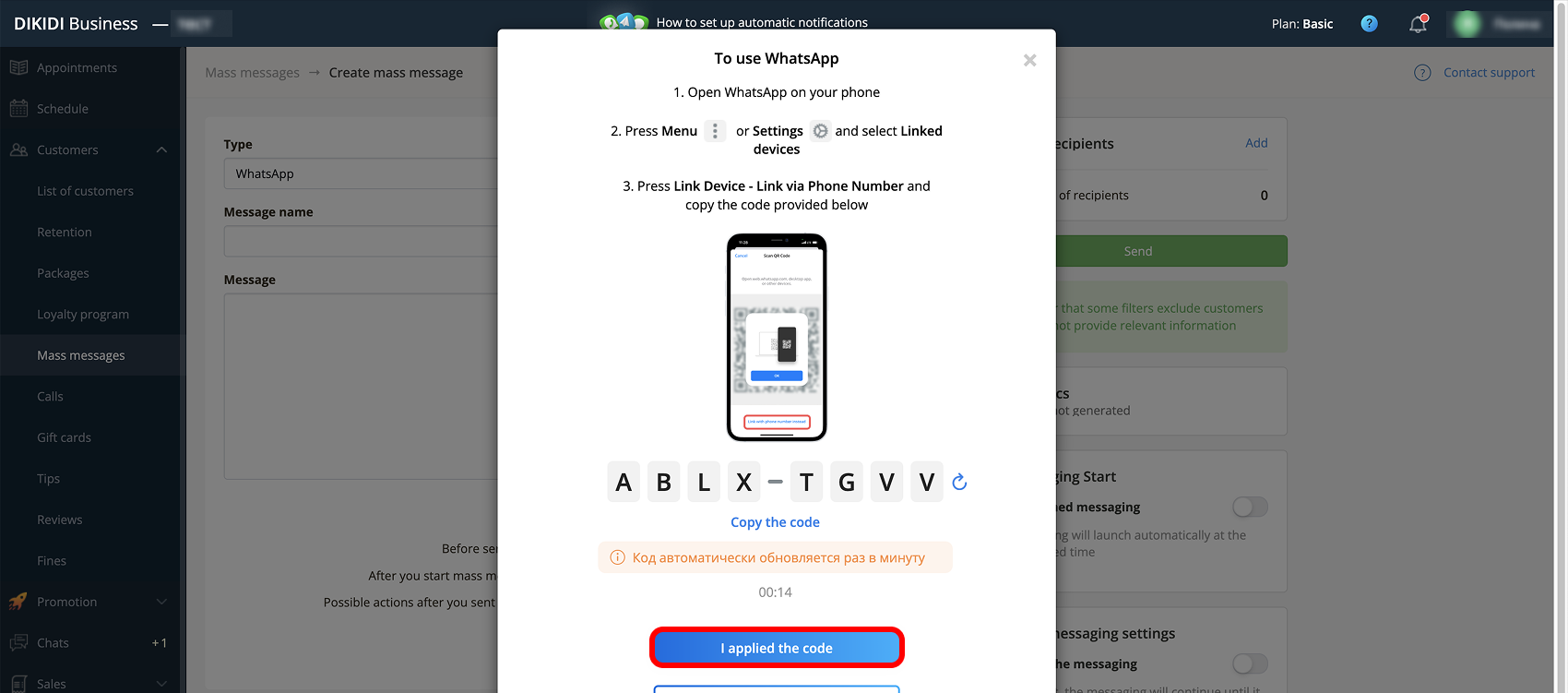
8️⃣ The system will generate a QR code or a text code to link the account.
Next, open WhatsApp or WhatsApp Business on your phone: “Menu” or “Settings” → "Linked devices" → "Link a device" → “Link via Phone Number”. Two connection methods are available:
Method 1 – via code
Select "Link with phone number" and enter the code displayed in DIKIDI. After entering, click "I applied the code".
⚠️ Important! The code is automatically updated every minute. If it has expired, use a new one.
Method 2 – via QR code
Point your phone camera at the QR code displayed in DIKIDI. After scanning, click "I scanned the code!".
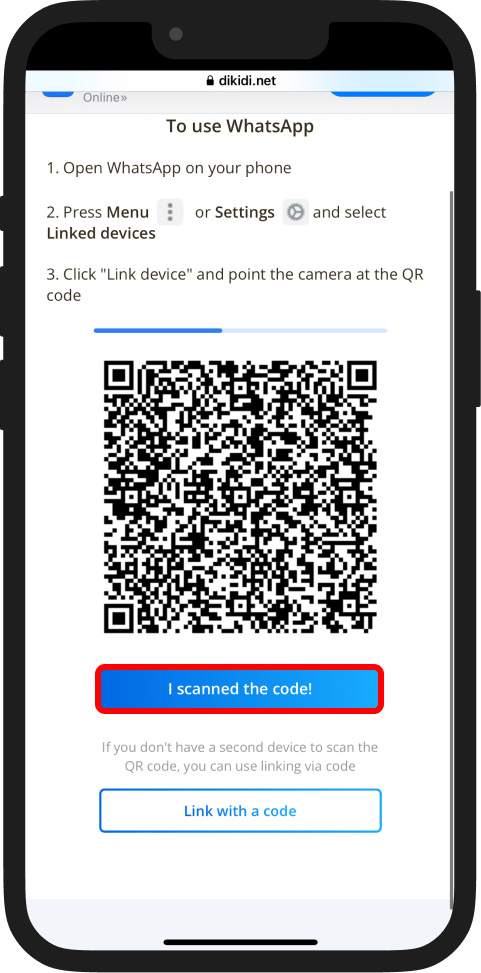
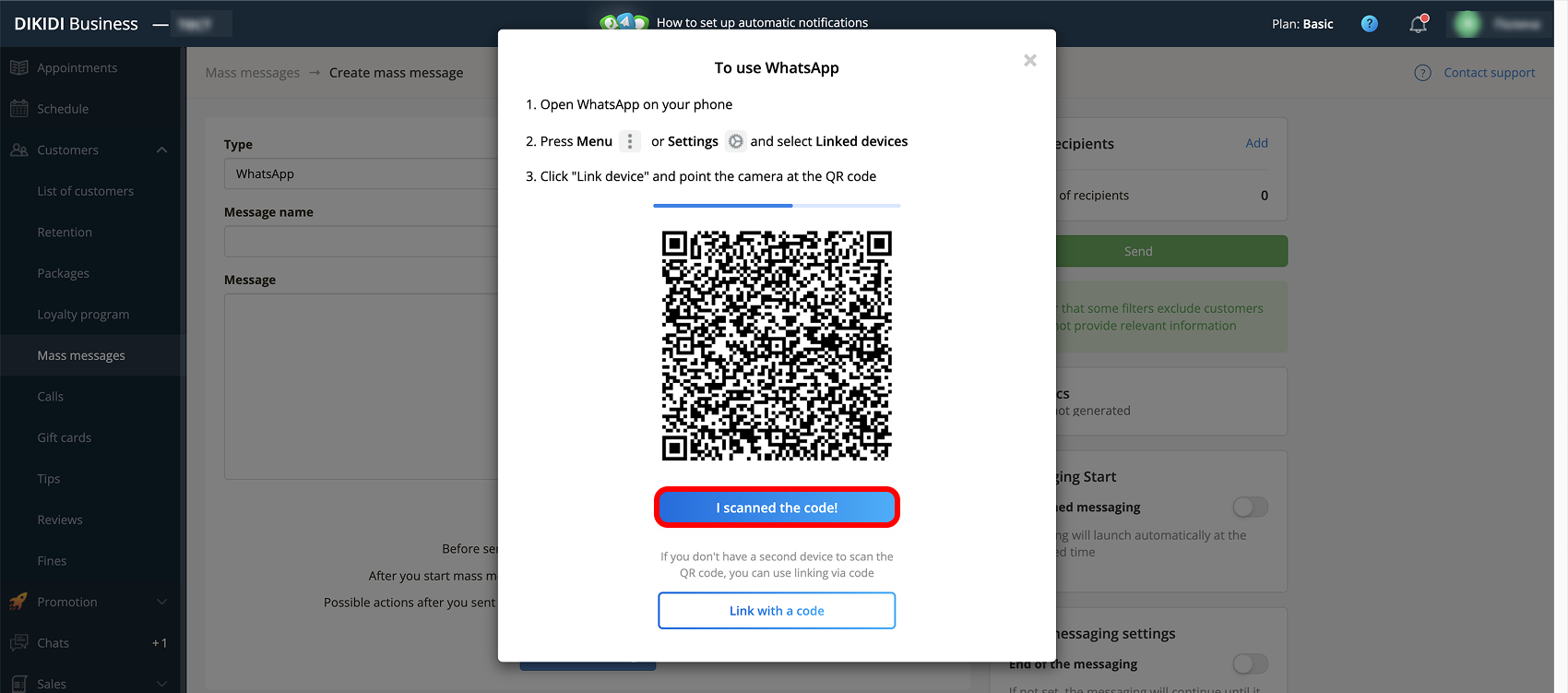
After successful linking, the channel will be connected, and you will be able to send messaging and notifications to customers via WhatsApp.
Option 2
1️⃣ Go to the section “Settings” → “Plans”.
2️⃣ In the “Plans” section, find “WhatsApp + mass messages” and click “Enable”.
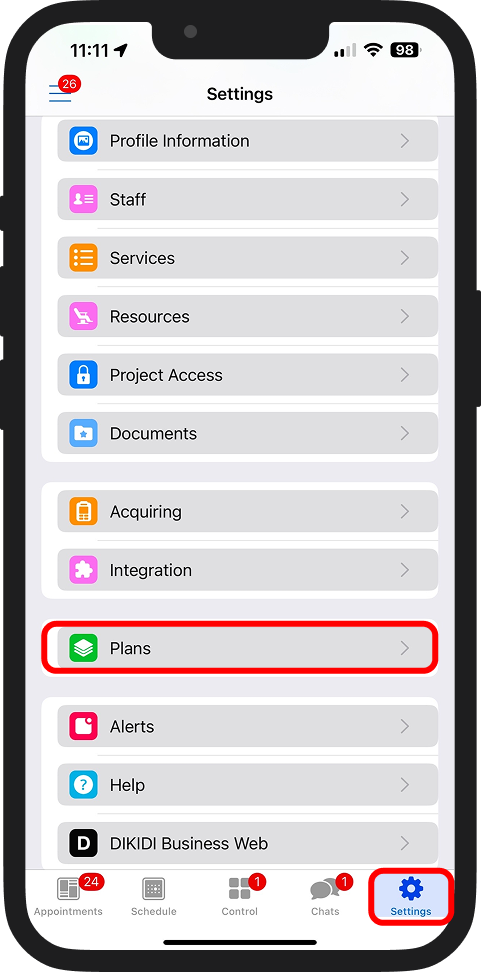
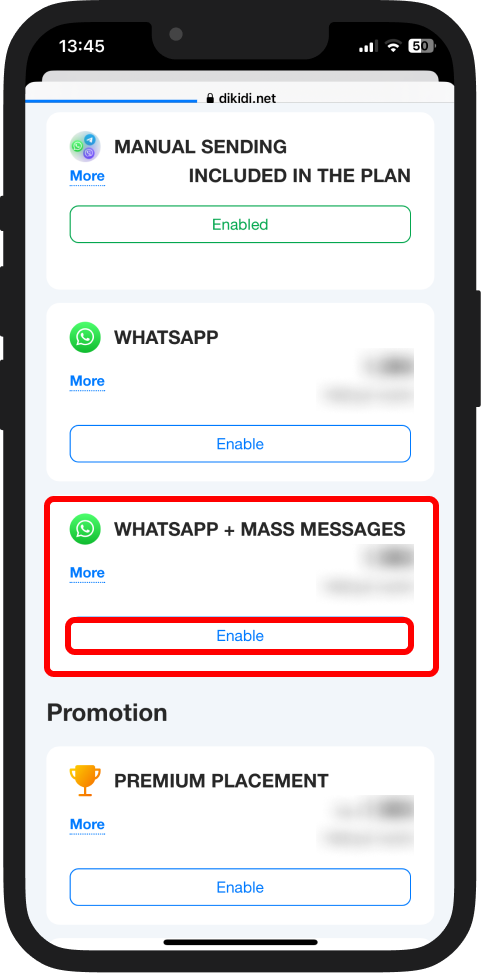
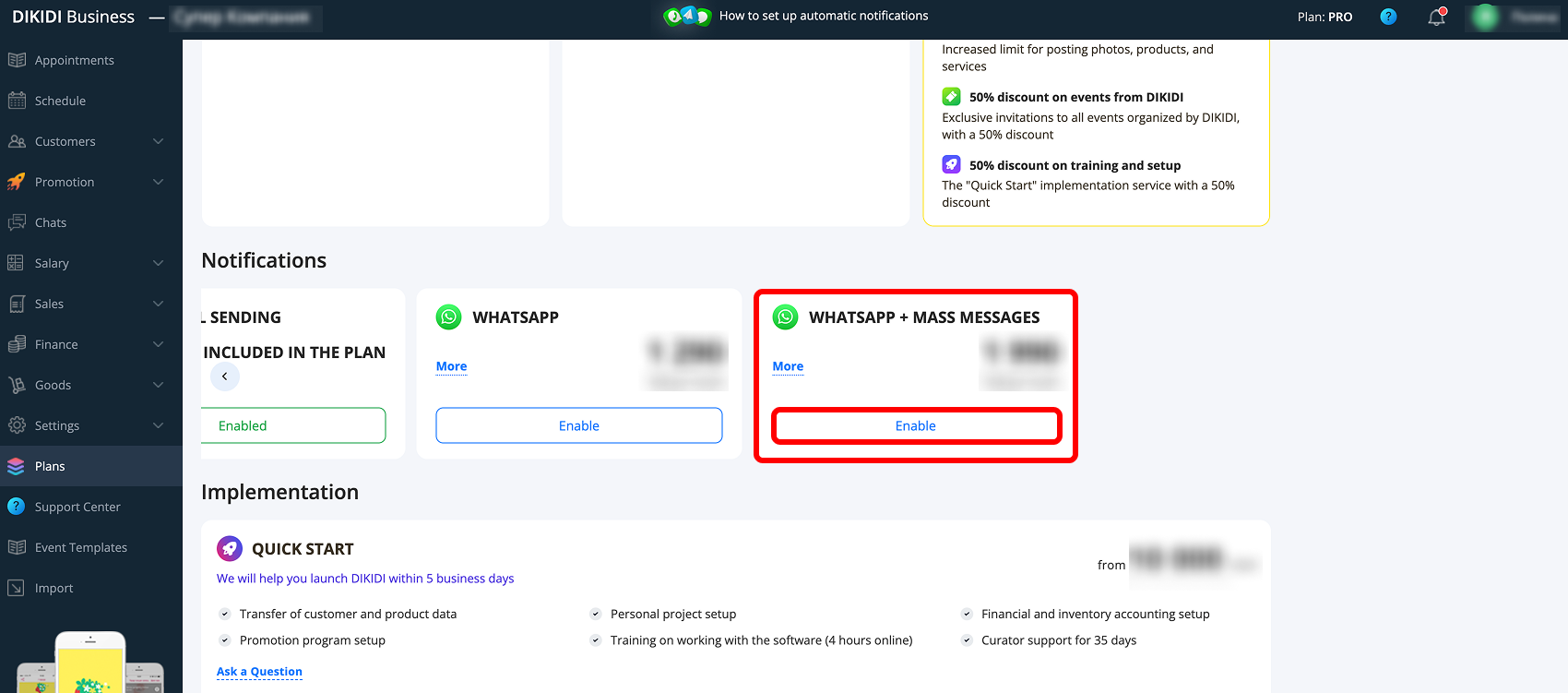
3️⃣ Follow the same steps as in Option 1 for connecting WhatsApp, starting from step 5.
⚙️ Messaging settings in WhatsApp
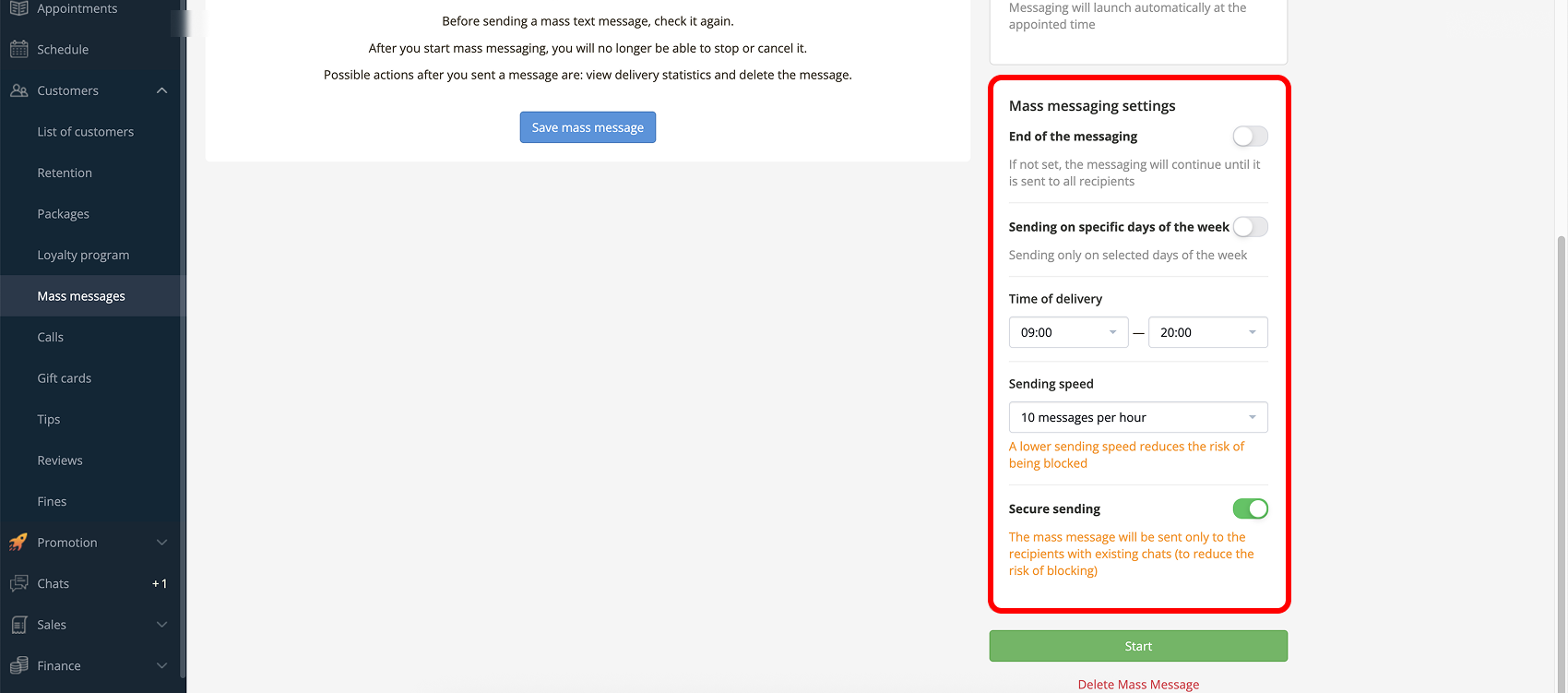
When selecting the WhatsApp channel, additional parameters become available.
🔹 End of messaging – you can specify the end date of sending. If no date is set, messaging will continue until it is sent to all recipients;
🔹 Sending on specific days of the week – you can select the days on which sending will be carried out;
🔹 Time of delivery – you can set a time range so that messages are not sent at night;
🔹 Sending speed – available values: 10, 20 or 40 messages per hour. The lower the speed, the lower the probability of restrictions from WhatsApp;
🔹 Secure sending – when enabled, messages will be sent only to clients with whom there is already a chat history. This reduces the risk of blocking.
⚠️ Important! If the sending speed is limited and a short period is set, messages may not have time to be sent to all recipients.
✅ Example: 1000 clients × 10 messages per hour × 2 days = 480 sent messages. In this case, it is recommended to increase the sending period or divide the audience into several messaging.
Recommendations for safe sending
- Use the minimum sending speed;
- Do not run several messaging at the same time;
- Gradually increase volumes if the number is new;
- Avoid overly promotional wording.
More about blocking risks ➡️ Reasons for WhatsApp messaging blocking 📖
📚 Read also: